
Setup
When you connect the Primer Web Requests app you get a webhook URL that you can sendJSON requests to.
Securing the webhook
Anyone who knows the webhook URL can send requests to it. To make sure only your systems can start the workflow, set an Incoming Authorization Token when configuring the app. Every request to the webhook URL must then carry it as a bearer token:Authorization header
403 response and do not start a workflow. If no token is configured, all requests are accepted.
The same app configuration also holds the credentials used by the “Send web request” action.
Starting a workflow using this trigger
Any request sent to this URL will start a workflow when a published workflow using this trigger exists.Restrictions
The trigger currently has the following restrictions:- only valid JSON payloads are supported
- the webhook responds immediately with a
200status and the body{"message": "Webhook received"}. The response does not contain any workflow output. Use the “Send web request” action if you want to send data to another system. - requests originating from Primer itself (a
Refererheader containingprimer.io) are rejected, so a workflow cannot start itself through this trigger
Using the request payload
AJSON payload can be passed with the web request, but is optional. If provided, the payload is available as “unstructured data” in the output of the trigger.
An example payload could be the following JSON:
JSON
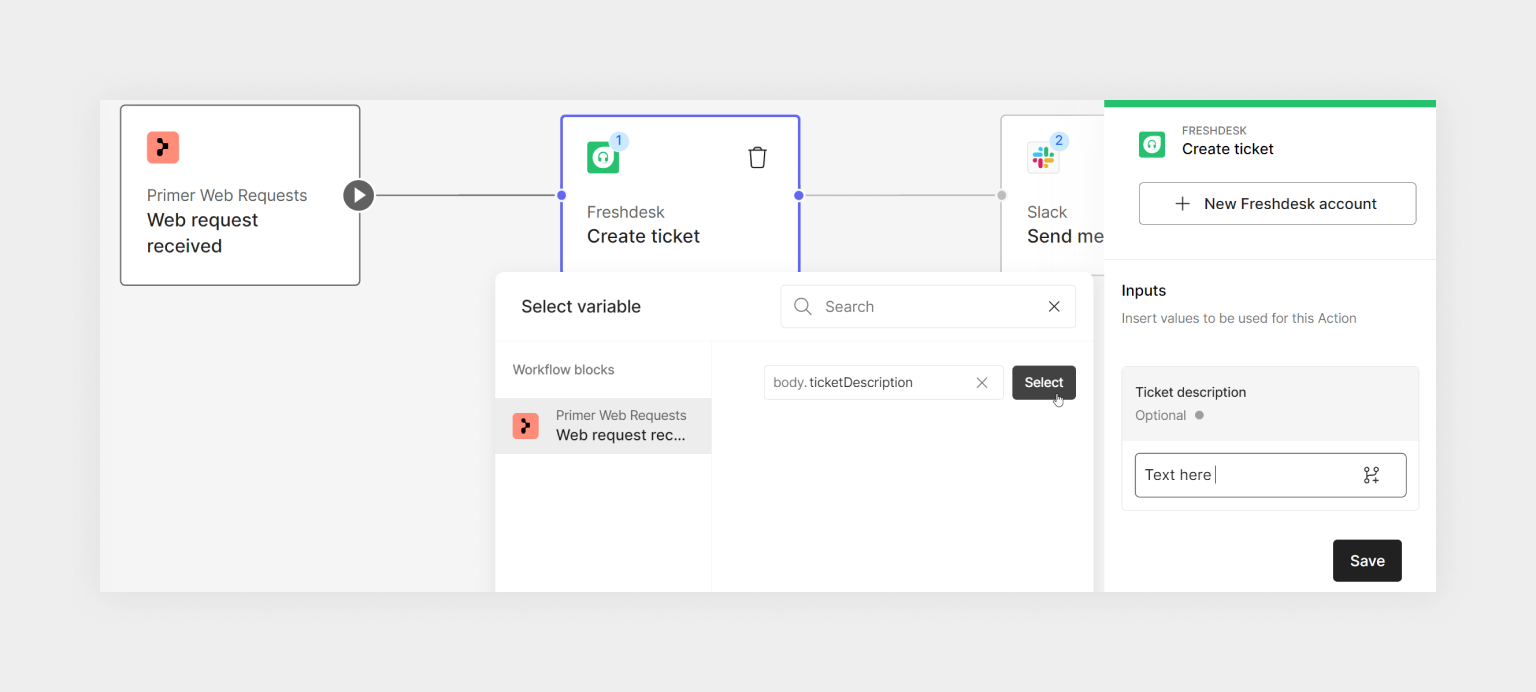
Condition example
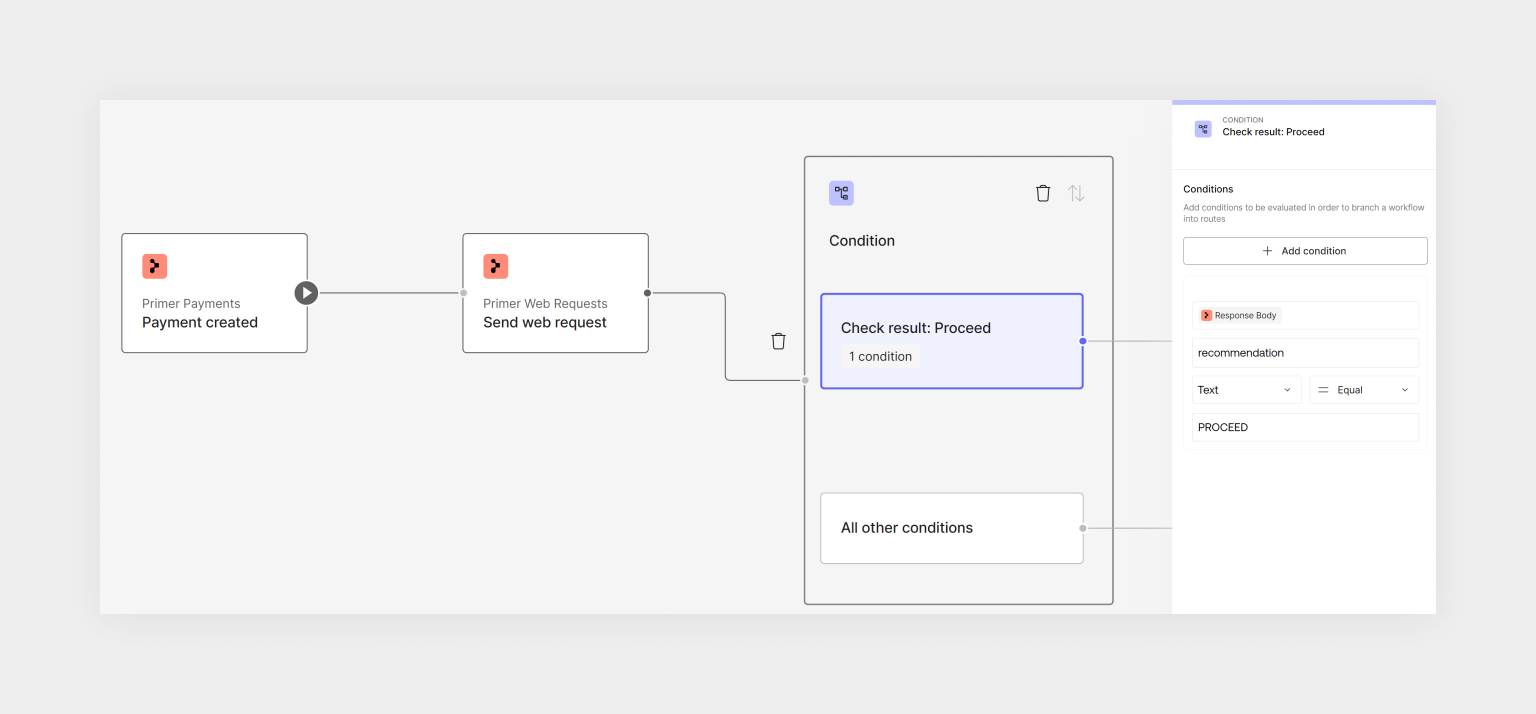
Condition example
Preventing accidental triggers
You can use trigger conditions to prevent a workflow from being started unless a value defined by yourself is passed through. This could serve as a check for the right payload, or just a custom key that you pass. In this example, a field calledcustomRequestType with the value TICKET_WORKFLOW is part of the payload.
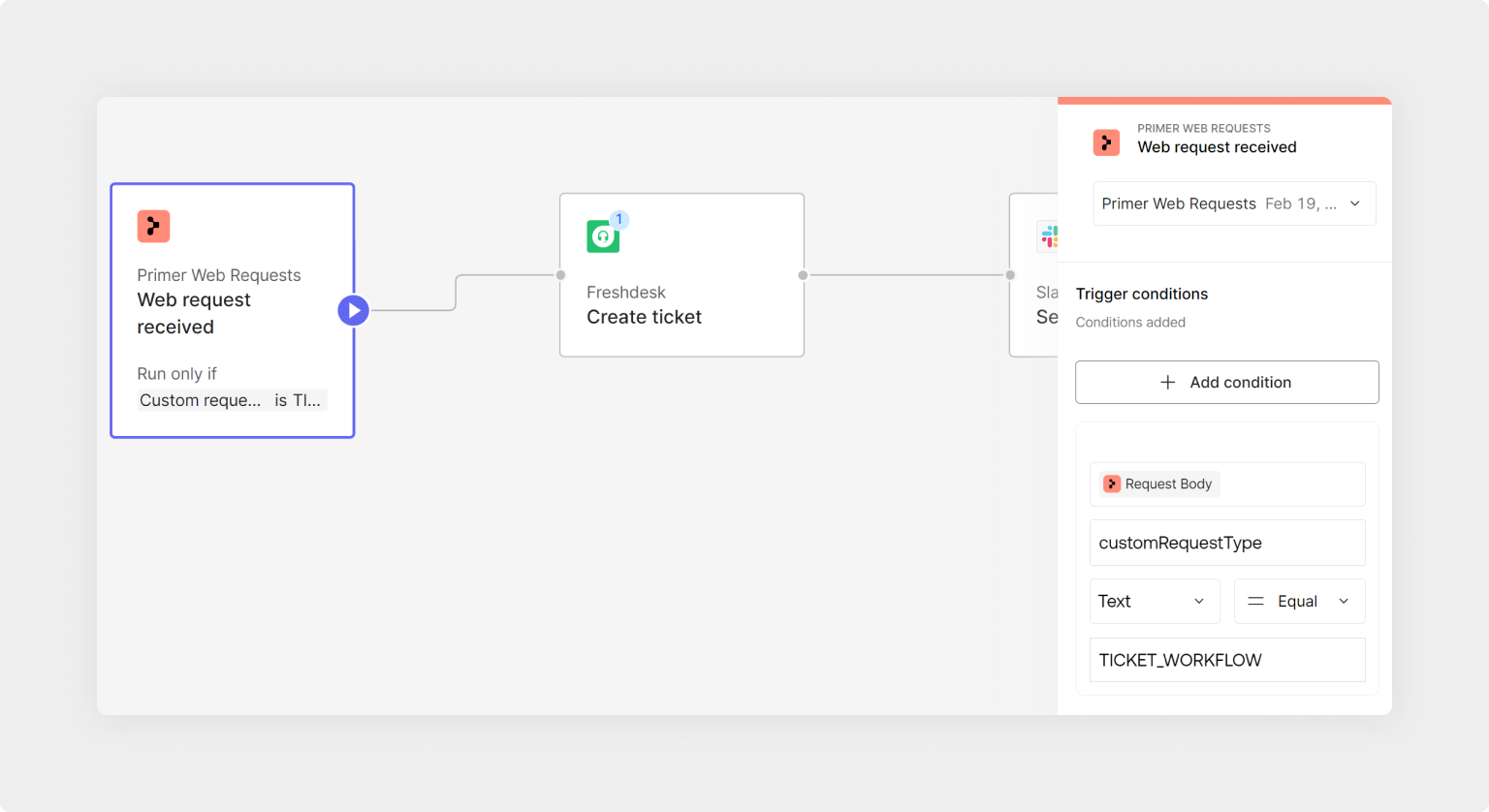
Trigger condition example
customRequestType then no workflow is started.
Start automating
- Now that you know what can be achieved with this trigger, start creating a workflow.
- Debug received requests or requests sent within the Workflow Runs