
Overview
Primer lets you support local card schemes through co-badged cards, without redesigning your checkout or building custom logic. You keep a single card form.Primer handles detection, selection, and routing, while helping you stay compliant with local regulations. This page explains:
- where co-badged cards are supported in Primer
- which platforms and integrations are compatible
- how to enable co-badged cards in your integration
How Primer supports co-badged cards
At a high level, Primer allows you to:- detect all card networks available on a card
- define which networks you want to accept
- control network preference and defaults
- let the shopper choose when regulations require it
- pass the selected network to your processor
Primer platform compatibility
The table below shows where co-badged card handling is supported across Primer platforms.Supported integrations and compatibility
The integrations listed below are fully compatible with co-badged cards in Primer. “Fully compatible” means:- the local card scheme is supported by the processor
- the integration works with Primer’s agnostic 3DS
- end-to-end routing and compliance requirements are covered
If you have a question or a project involving local card schemes, contact your Customer Success Manager or reach out to Primer Support.
Cartes Bancaires (France)
Cartes Bancaires (CB) is the domestic card network in France. More than 95% of CB cards are co-badged with Visa or Mastercard.This means the same card can be processed on:
- the Cartes Bancaires network, or
- the Visa or Mastercard networks
Supported integrations
- MONEXT
- Adyen
- Stripe
- Checkout.com
- Payplug
Monext: 3DS card brand identifierWhen processing 3DS authentication via Monext, the
cardBrand field in the 3DS authentication data returns "CB" for all card types, including Visa and Mastercard. This is expected Monext behavior — in the French payments ecosystem, “CB” is used as a generic identifier covering Cartes Bancaires, Visa, and Mastercard under the co-badging scheme. The actual card network is determined separately during the payment flow and is not affected by this value.eftpos (Australia)
eftpos is the domestic debit card network in Australia. More than 90% of eftpos cards are co-badged with Visa or Mastercard, which means they can be processed through either network depending on configuration and routing.Non co-badged eftpos cards (also known as “proprietary eftpos cards”) are only supported for in-person payments and cannot be used for online transactions.
Supported integrations
- Worldpay
Process to enable local card schemes
Step 1 – Enable local schemes with your processor
Before enabling co-badged cards in Primer, make sure that:- the local card scheme is enabled on your processor account
- the scheme supports online card payments
- your merchant account is correctly configured for the relevant region
If the local scheme is not enabled at processor level, Primer cannot reliably route payments to it, which may result in inconsistent scheme routing or failed payments.
Step 2 – Allow card networks in the client session
Co-badged card behaviour is controlled from the client session. When creating a client session, define which card networks you want to accept usingorderedAllowedCardNetworks.
- defines which card networks are accepted
- defines the default preference order
Supported card network identifiers
Use the following identifiers when configuringorderedAllowedCardNetworks:
VISA, MASTERCARD, AMEX, MAESTRO, UNIONPAY, CARTES_BANCAIRES, DANKORT,EFTPOS, DINERS_CLUB, DISCOVER, ENROUTE, ELO, HIPER, INTERAC, JCB, MIR, OTHER
Network availability depends on your processor and region.
How network preference works
The order oforderedAllowedCardNetworks matters.
Primer uses this order to:
- select a default network when a card is co-badged
- fall back automatically if the shopper does not make a choice
Example
- CB + Visa card → defaults to Cartes Bancaires
- Visa-only card → uses Visa
- Unsupported card → rejected
Step 3 – Workflow configuration
To ensure payments are routed to the correct processor, you must explicitly configure routing for local schemes in your card workflow.How to configure
- Open your card workflow
- Add a Condition node based on Card network
- Configure the condition:
- Card network equals the local scheme you want to route
(for example:EFTPOS,CARTES_BANCAIRES, orVISA)
- Card network equals the local scheme you want to route
- On the true branch:
- Add an Authorize payment step using a processor that supports this card network
- On the else branch:
- Keep your existing routing
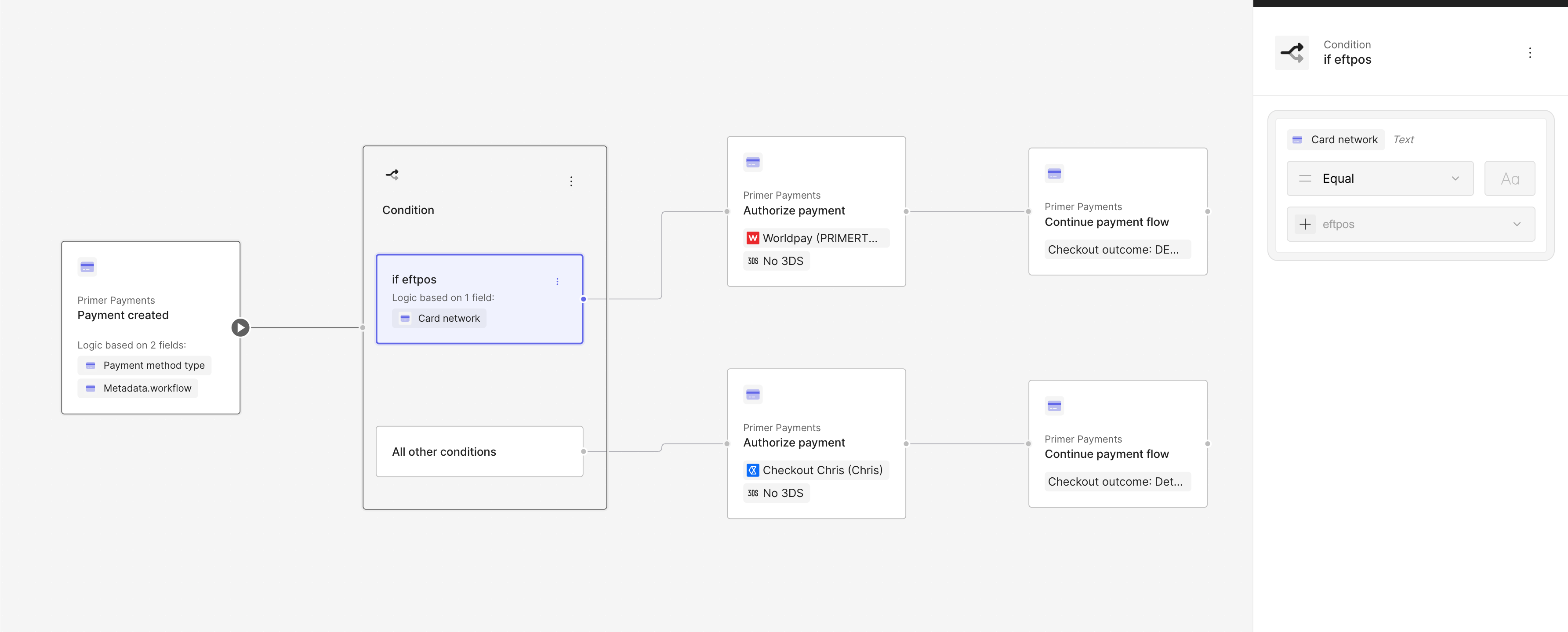
Example of workflow routing based on card network
Apple Pay and Google Pay
The same configuration you apply for card payments automatically applies to Apple Pay and Google Pay. If a local scheme is enabled for cards, it will also be enabled for Apple Pay and Google Pay when supported by the wallet and the underlying card. This means:- no additional frontend work is required
- changes made to the card configuration also affect Apple Pay and Google Pay
- the shopper selects the card inside the wallet UI, not in your checkout
- there is no card network selector displayed in your checkout for Apple Pay or Google Pay
- the wallet may automatically choose a network on behalf of the shopper
- depending on the wallet and platform, Primer may or may not receive an explicit network preference

Native card network selection in Apple Pay
Testing co-badged cards
Primer provides test cards for some co-badged scenarios through the Sandbox processor. Use the following resources to validate your integration:Common pitfalls
Before going live, make sure that:-
Local schemes are enabled at processor level
Otherwise, routing may be inconsistent or fail. -
Your Client Session only advertises supported networks
orderedAllowedCardNetworksmust match what your processors can handle. -
Saved (vaulted) cards keep using the originally selected network
The network used for the first transaction is stored with the payment method and cannot be changed later. -
Recurring payments reuse the initial network choice
MITs and recurring payments must be processed using the same network as the original transaction.