
How to refund a payment
Primer enables you to fully or partially refund a settled payment across all your processors in a unified way. In order to refund a payment, its status must be . Once refunded, the payment will continue to have:status=amount= original settled amount
- the processor refund transaction will be part of the
transactionslist processor.amountRefundedwill be set to the total refunded amount
JSON
- the Payment timeline in the Primer Dashboard
- payment webhooks to receive the refund complete event - see the API reference for more.
- the API call
Payments timeline
Manually refund a payment from an easy-to-use dashboard.
Workflows
Automate sophisticated payment flows to refund your payments.
Payments API
Programmatically refund your payments via API based on your business logic.
Refund a payment via the Payments Timeline
This is useful to enable your customer support to provide refunds directly from within the dashboard.
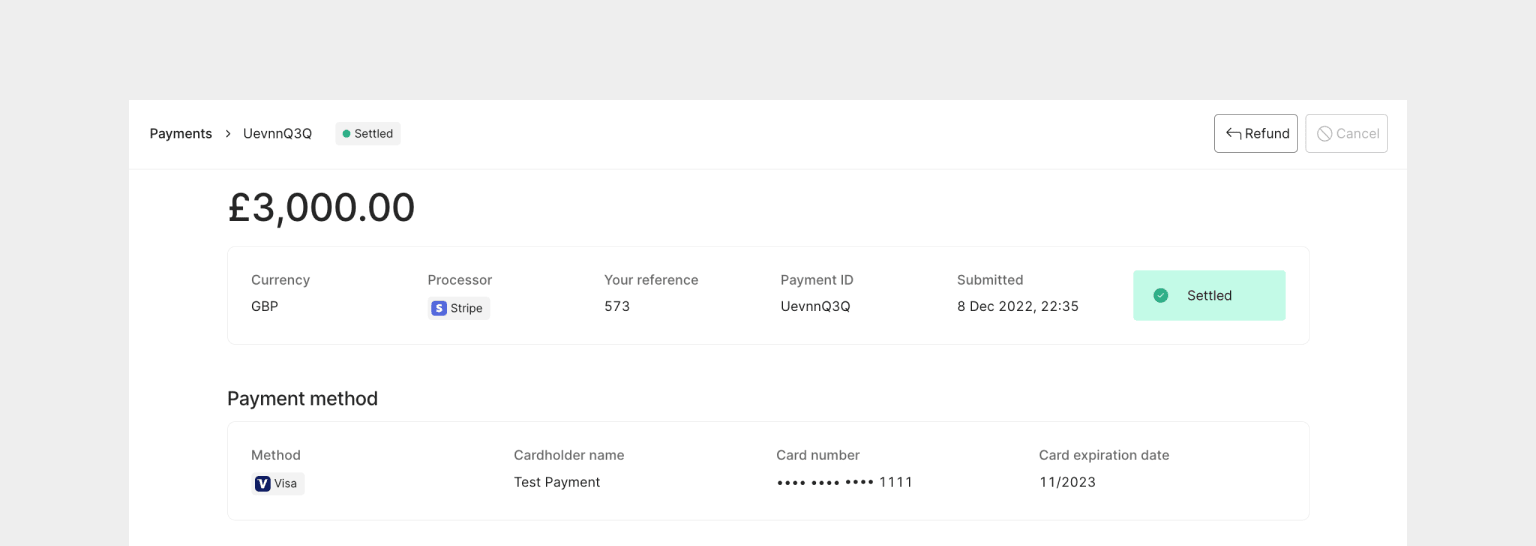
Refund button enabled
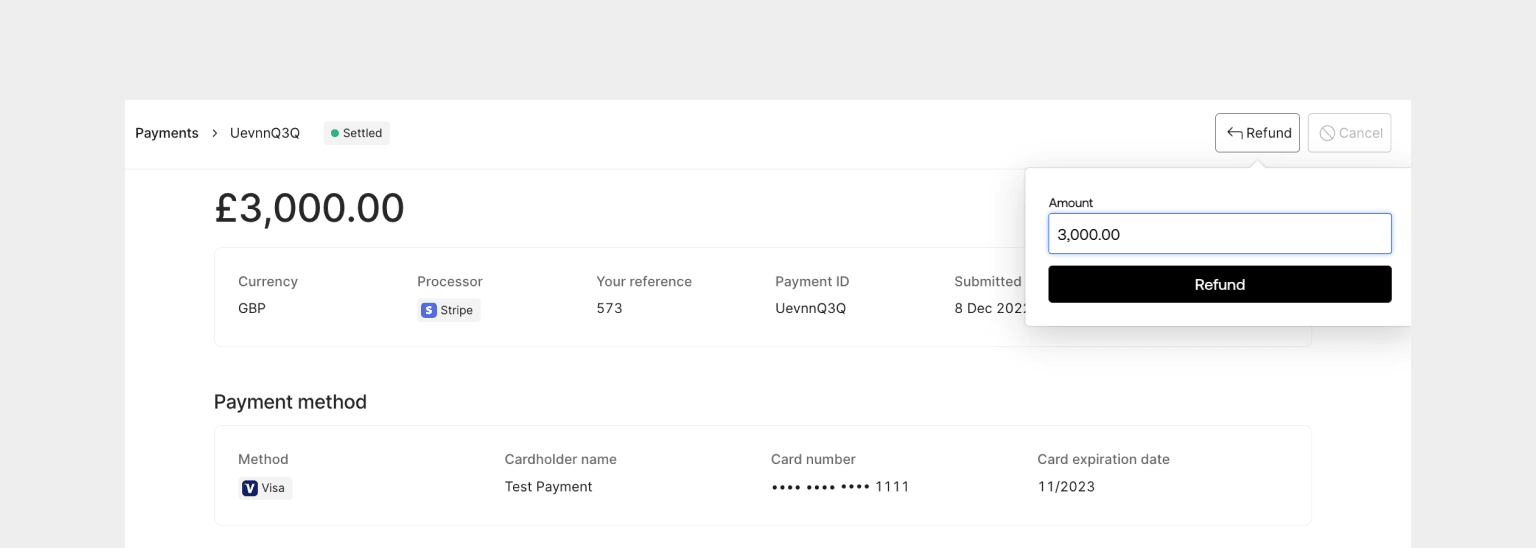
Specify refund amount
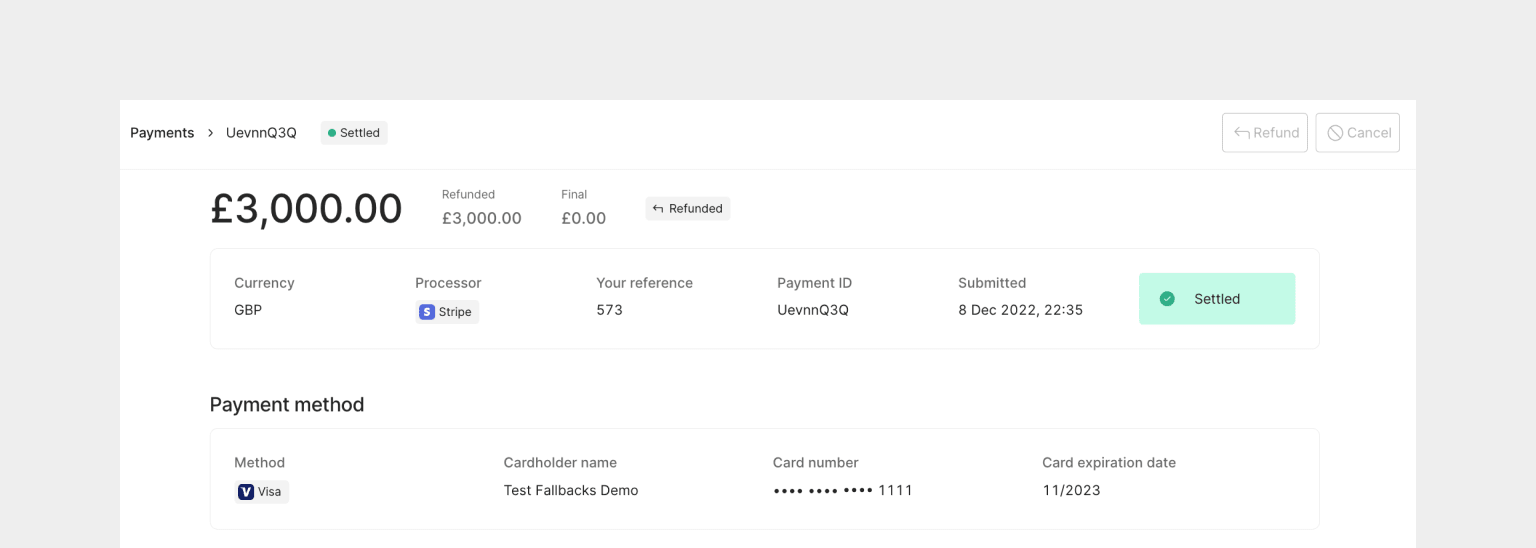
Refunded example
Refund a payment via Workflows
Use Workflows to set up business logic on when and how to refund a payment - without writing a single line of code. Simply add the “Refund payment” action from the Primer Payments app to a workflow. Learn more here about the Payments app and the “Refund payment” action.Asynchronous refund considerations still apply to the “Refund payment” action
in Workflows. It’s recommended to use Primer’s payment webhooks to confirm
when the payment is refunded.
Refund a payment via Payments API
Refund a payment using the Payments API - see the API reference for the details.BASH
reason input that can be used for your own records.
Handle asynchronous refund
Refunds are usually processed asynchronously. Once the refund request has been made, the refund, and movement of funds back to the customer, will occur and could take days. As a result, it’s recommended to set up the refund webhook notification event. Primer notifies you with aPAYMENT.REFUND webhook event when a refund request has been fully processed by a payment processor and the refund has reached a final state.
To determine whether the refund was successful, check the most recent refund transaction in the transactions list. Below is an example of a processor refund transaction:
JSON
- If
transactionType=REFUNDandprocessorStatus= , the refund was successful and the funds have been returned to the customer - If
transactionType=REFUNDandprocessorStatus= , the refund was unsuccessful
Partial refund
Not all processors and payment methods support partial refunds. Please see the details of the specific processor or payment method to learn more about the capabilities supported.
amount input to less than the full settled amount.
For subsequent refund requests, the default amount is then calculated by <amount settled> - <amount already refunded>.
You will not be able to have partial refunds that sum to a greater amount than the settled amount.