> ## Documentation Index
> Fetch the complete documentation index at: https://primer.io/docs/llms.txt
> Use this file to discover all available pages before exploring further.
# Send web request Action
export const ColorTag = ({text, sentiment = 'neutral'}) => {
function getSentimentStyles(sentiment) {
switch (sentiment?.toLowerCase()) {
case 'positive':
case 'success':
return {
backgroundColor: '#ecfdf5',
color: '#065f46'
};
case 'negative':
case 'error':
return {
backgroundColor: '#fef2f2',
color: '#991b1b'
};
case 'warning':
return {
backgroundColor: '#fffbeb',
color: '#92400e'
};
case 'info':
return {
backgroundColor: '#eff6ff',
color: '#1e40af'
};
case 'neutral':
default:
return {
backgroundColor: '#f0f0f0',
color: '#7c7c7c'
};
}
}
;
const baseStyle = {
display: 'inline-block',
padding: '2px 8px',
margin: '2px 4px 2px 0',
borderRadius: '6px',
fontSize: '0.875em',
lineHeight: '1.5',
fontFamily: 'monospace',
fontWeight: 500,
whiteSpace: 'nowrap'
};
const tagStyle = {
...baseStyle,
...getSentimentStyles(sentiment)
};
if (!text) {
return null;
}
return {text};
};
This page describes the "Send web request" action. To start a workflow with a web request, use the ["Web request received" trigger](/docs/workflows/apps/native-apps/primer-web-requests-app/web-request-received-trigger).
The "Send web request" action can be used to send a web request to an external server. This could be your own endpoint or the endpoint of another service accepting web requests.
## Restrictions
The action currently has the following restrictions:
* you can only use synchronous requests
* only endpoints using **https** are supported
* an authentication header can be passed, but no other headers
* only GET and POST methods are currently supported
* only JSON payloads are currently supported
If you have different requirements for your particular automation, please reach out to us directly via our [Support Portal](https://primerapi.atlassian.net/servicedesk/customer/portal/11) to tell us more about your request. If you don’t have access, please contact your account administrator for assistance.
## Sending the request
Configure the following inputs to set up the action:
| Input | Description |
| :---------------------------------- | :-------------------------------------------------------------------------------------------------------------------------------------------------------------------------------------------------------------------------------------------------------------------------------------------------------------------------------------- |
| Methods | GET or POST. No payload will be sent for GET requests. |
| Target URL | The external server to send the request to. Only **https** endpoints are supported. |
| Payload | The JSON payload for POST requests. There is only **partial validation** available if a proper JSON payload is constructed as the values are replaced only during runtime of the workflow. Use the [Workflow Runs](/docs/workflows/monitor-workflows/overview) to debug the actual request passed and response received in case of problems. |
| Custom headers | You can set additional headers to be sent if necessary. You must not use this for API keys or other authorization methods, as the credentials will be visible in the Workflow Run view. Instead, set credentials and authorization header name when configuring the App itself. |
| Fail action on unsuccessful request | Boolean (default: **True**). Determines how the workflow handles failed web requests. When **True**, the workflow stops on failure; when **False**, it continues execution even if the request fails. |
Example request with a placeholder for some variables. Use the [variable selector](/docs/get-started/create-workflow#add-actions) to assign outputs from different blocks when creating this request.
```json JSON theme={"dark"}
{
"customRequestType": "RECOMMENDATION_ENGINE",
"paymentId": "[PAYMENT_ID]",
"orderId": "[ORDER_ID]",
"customerId": "[CUSTOMER_ID]",
"ruleDescription": "Get recommendation on how to proceed after a payment was created."
}
```
## Handling the response
The following response data is available in the output of the trigger:
| Output | Description |
| :-------------------- | :--------------------------------------------------------------------------- |
| Response Body | The payload, available as "unstructured data" if the response contains JSON. |
| Response content-type | The content type of the response (e.g., `application/json`). |
| Response status | The HTTP status code of the response. |
| Success | Boolean indicating whether the request was successful (`2xx` status). |
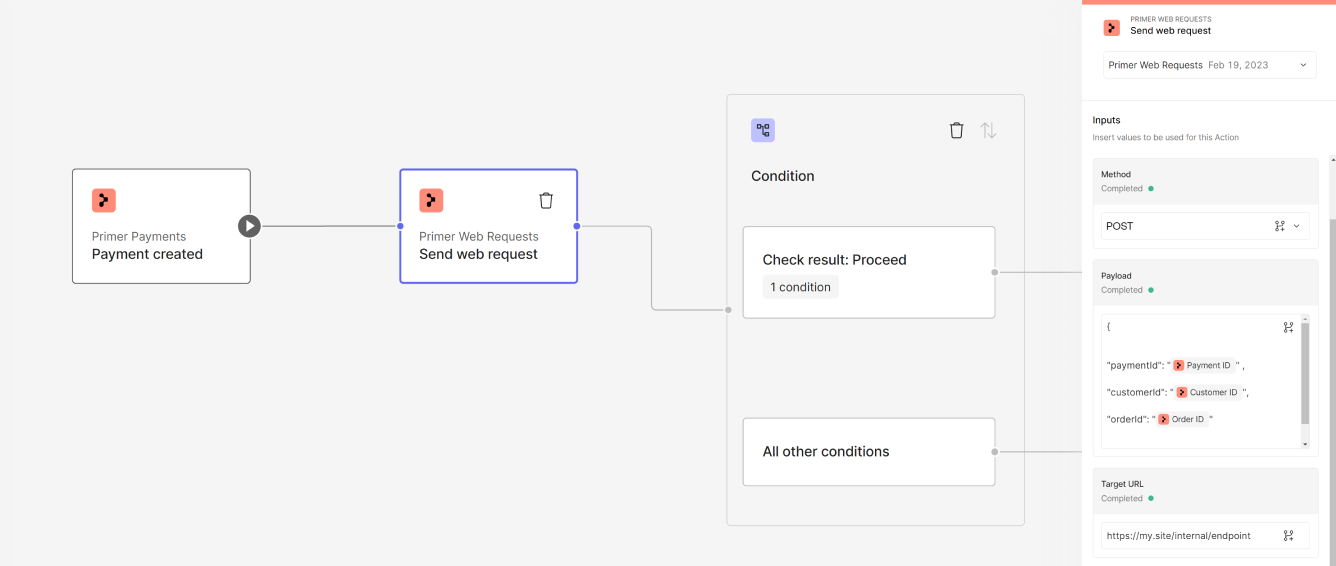
You can pass this data to another workflow block using the variable selector. For the **Response Body**, you must specify the **path** to the variable you want to use.
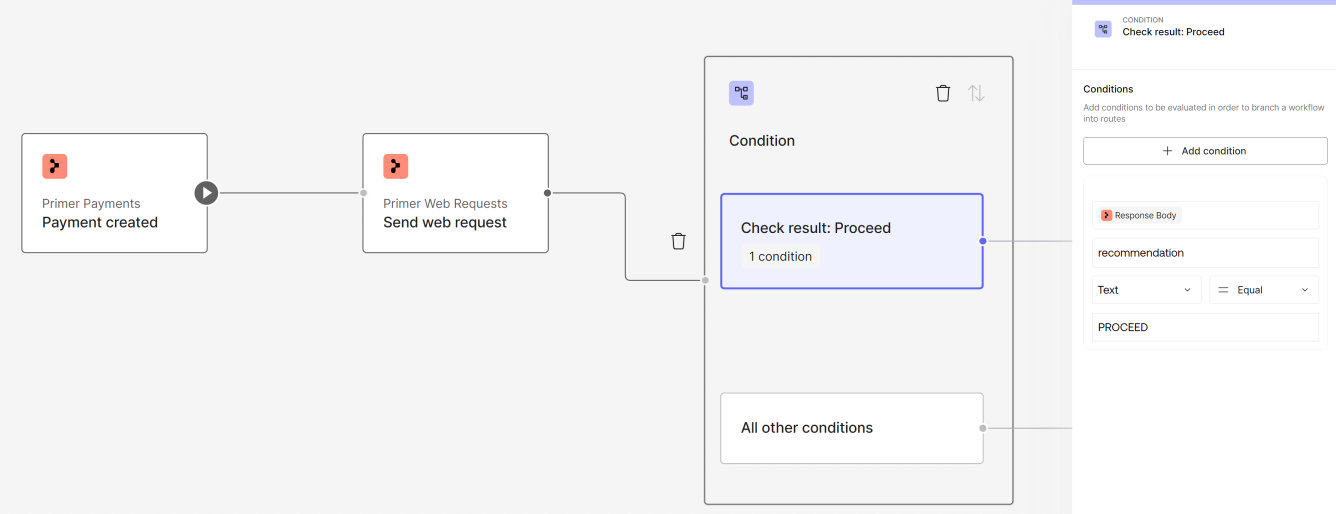
 It is also possible to use that data to build conditions in the same way.
 ### Failure handling
Requests may time out and fail if no response is received within 30 seconds. If a use case requires a longer duration, then this synchronous action is not the right approach. Consider splitting the request and using the ["Web request received" trigger](/docs/workflows/apps/native-apps/primer-web-requests-app/web-request-received-trigger) to continue.
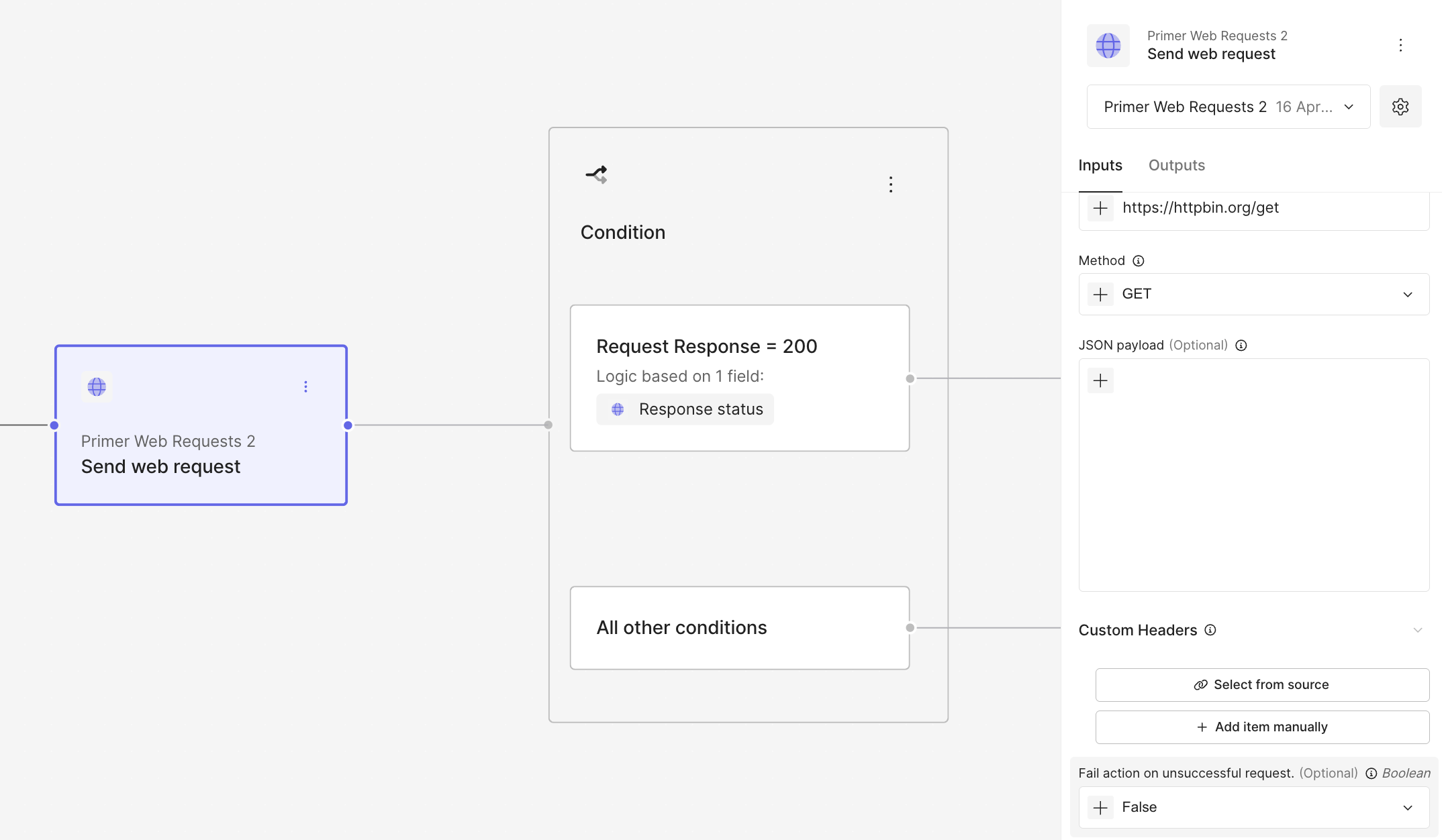
If the request fails due to a timeout or any other non-`2xx` response, the workflow run will be marked as by default. You can change this behavior by setting **Fail action on unsuccessful request** to **False**, allowing the workflow to continue execution even when the request is unsuccessful.
### Failure handling
Requests may time out and fail if no response is received within 30 seconds. If a use case requires a longer duration, then this synchronous action is not the right approach. Consider splitting the request and using the ["Web request received" trigger](/docs/workflows/apps/native-apps/primer-web-requests-app/web-request-received-trigger) to continue.
If the request fails due to a timeout or any other non-`2xx` response, the workflow run will be marked as by default. You can change this behavior by setting **Fail action on unsuccessful request** to **False**, allowing the workflow to continue execution even when the request is unsuccessful.
 Learn more about [debugging workflow runs](/docs/workflows/monitor-workflows/overview).
## Example flow
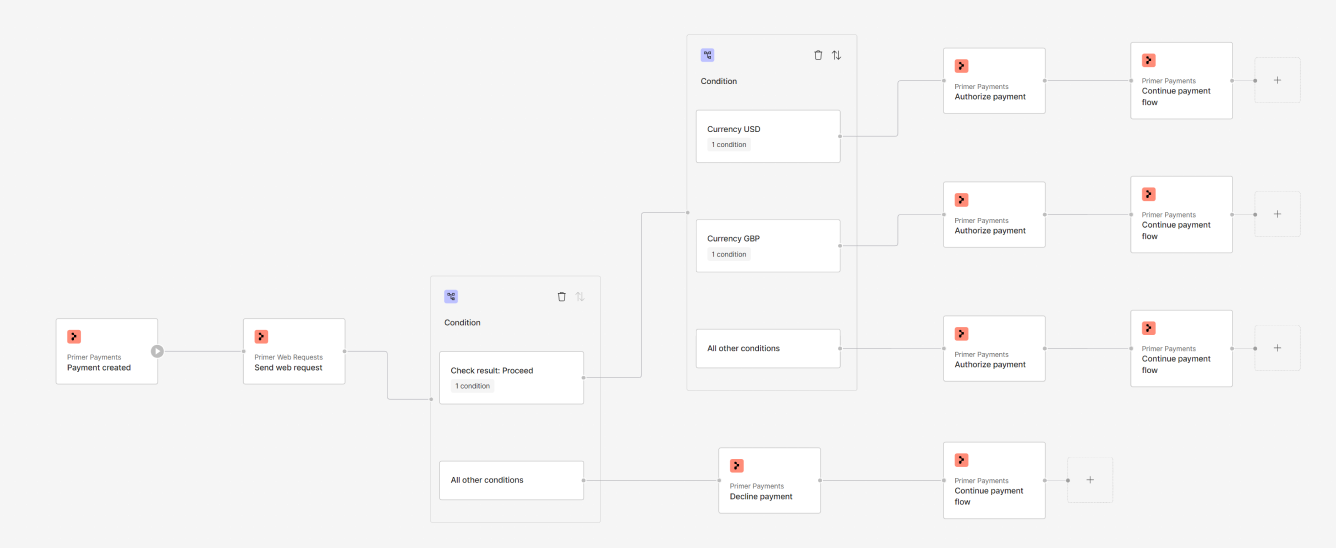
An example use of the send web request action could be to use an internal recommendation engine before authorizing a payment. If the response contains a "recommendation" field with a value "PROCEED", then the payment flow continues, otherwise the payment gets declined.
Learn more about [debugging workflow runs](/docs/workflows/monitor-workflows/overview).
## Example flow
An example use of the send web request action could be to use an internal recommendation engine before authorizing a payment. If the response contains a "recommendation" field with a value "PROCEED", then the payment flow continues, otherwise the payment gets declined.
 ## Start automating
* Now that you know what can be achieved with this action, start [creating a workflow](/docs/get-started/create-workflow).
* Debug received requests or requests sent within the [Workflow Runs](/docs/workflows/monitor-workflows/overview)
## Start automating
* Now that you know what can be achieved with this action, start [creating a workflow](/docs/get-started/create-workflow).
* Debug received requests or requests sent within the [Workflow Runs](/docs/workflows/monitor-workflows/overview)