> ## Documentation Index
> Fetch the complete documentation index at: https://primer.io/docs/llms.txt
> Use this file to discover all available pages before exploring further.
# Refund payment Action
export const TxnTag = ({status}) => {
const getStyles = status => {
const baseStyle = {
display: 'inline-block',
padding: '4px 8px',
borderRadius: '4px',
fontSize: '13px',
fontWeight: '400'
};
switch (status) {
case "PENDING":
return {
...baseStyle,
backgroundColor: '#ececec',
color: '#9f9f9f'
};
case "AUTHORIZED":
return {
...baseStyle,
backgroundColor: '#ecfdf5',
color: '#047857'
};
case "SETTLED":
case "PARTIALLY_SETTLED":
return {
...baseStyle,
backgroundColor: '#ecfdf5',
color: '#047857'
};
case "DECLINED":
case "FAILED":
return {
...baseStyle,
backgroundColor: '#fef2f2',
color: '#dc2626'
};
case "CANCELLED":
return {
...baseStyle,
backgroundColor: '#fefce8',
color: '#d78203'
};
case "SETTLING":
return {
...baseStyle,
backgroundColor: '#e0f2fe',
color: '#0c4a6e'
};
default:
return {
...baseStyle,
backgroundColor: '#f3f4f6',
color: '#374151'
};
}
};
return {status};
};
## What does this Action do?
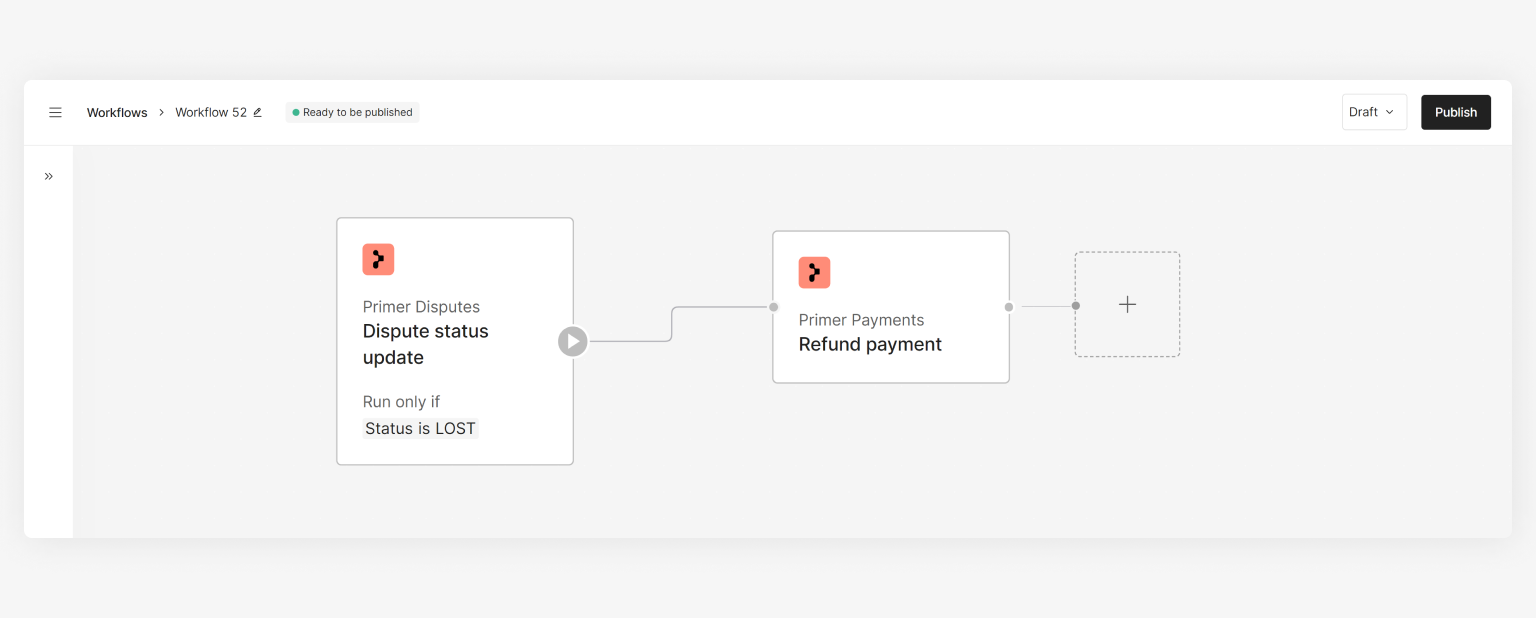
The "Refund payment" Action is responsible for sending the refund request. It enables you to define rules where you wish to perform an automated refund.
Learn more about refunding payments [here](/docs/manage-payments/refund-payment).
 If the payment is not in the state, you will not be able to perform a refund.
## How to use the Action
* Assign a `payment ID` - this will usually be the "Payment ID" from the ["Payment created" Trigger](/docs/workflows/apps/native-apps/primer-payments-app/payment-created-trigger) output or ["Payment status updated" Trigger](/docs/workflows/apps/native-apps/primer-payments-app/payment-status-updated-trigger) output
* \[Optional] Set `reason`, which can be used for your own records
* \[Optional] Set `amount` if you wish to [partial refund](/docs/manage-payments/refund-payment#partial-refund)
Refunds are usually processed asynchronously. Once the refund request has been made, the refund, and movement of funds back to the customer, will occur and could take days. Learn more [here](/docs/manage-payments/capture-payment#handle-asynchronous-capture) and how to handle these scenarios.
If the payment is not in the state, you will not be able to perform a refund.
## How to use the Action
* Assign a `payment ID` - this will usually be the "Payment ID" from the ["Payment created" Trigger](/docs/workflows/apps/native-apps/primer-payments-app/payment-created-trigger) output or ["Payment status updated" Trigger](/docs/workflows/apps/native-apps/primer-payments-app/payment-status-updated-trigger) output
* \[Optional] Set `reason`, which can be used for your own records
* \[Optional] Set `amount` if you wish to [partial refund](/docs/manage-payments/refund-payment#partial-refund)
Refunds are usually processed asynchronously. Once the refund request has been made, the refund, and movement of funds back to the customer, will occur and could take days. Learn more [here](/docs/manage-payments/capture-payment#handle-asynchronous-capture) and how to handle these scenarios.