> ## Documentation Index
> Fetch the complete documentation index at: https://primer.io/docs/llms.txt
> Use this file to discover all available pages before exploring further.
# Payment status updated Trigger
export const TxnTag = ({status}) => {
const getStyles = status => {
const baseStyle = {
display: 'inline-block',
padding: '4px 8px',
borderRadius: '4px',
fontSize: '13px',
fontWeight: '400'
};
switch (status) {
case "PENDING":
return {
...baseStyle,
backgroundColor: '#ececec',
color: '#9f9f9f'
};
case "AUTHORIZED":
return {
...baseStyle,
backgroundColor: '#ecfdf5',
color: '#047857'
};
case "SETTLED":
case "PARTIALLY_SETTLED":
return {
...baseStyle,
backgroundColor: '#ecfdf5',
color: '#047857'
};
case "DECLINED":
case "FAILED":
return {
...baseStyle,
backgroundColor: '#fef2f2',
color: '#dc2626'
};
case "CANCELLED":
return {
...baseStyle,
backgroundColor: '#fefce8',
color: '#d78203'
};
case "SETTLING":
return {
...baseStyle,
backgroundColor: '#e0f2fe',
color: '#0c4a6e'
};
default:
return {
...baseStyle,
backgroundColor: '#f3f4f6',
color: '#374151'
};
}
};
return {status};
};
## When is it triggered?
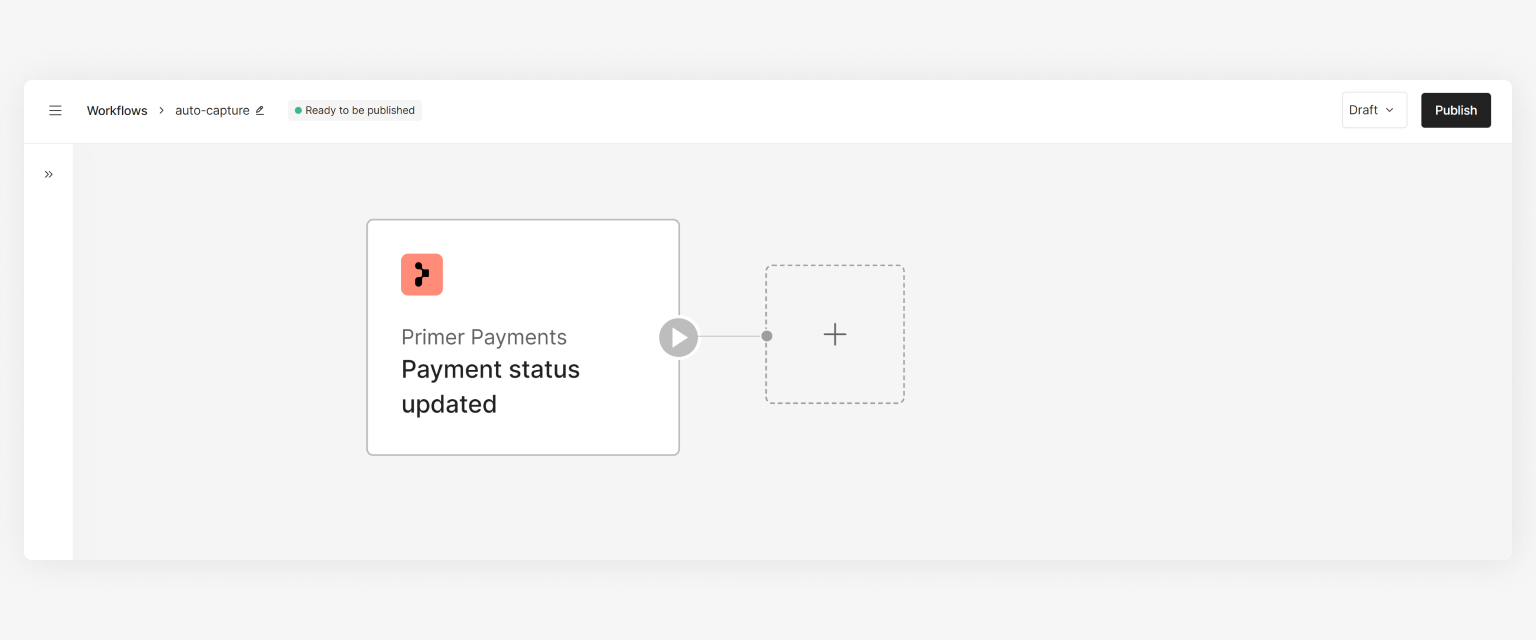
The "Payment status updated" Trigger will listen for payment status changes and when received, will start the workflow. This Trigger can be used to build workflows to react to payment status changes, such as when a payment transitions from to .
 ## Use cases
Below are some examples for inspiration:
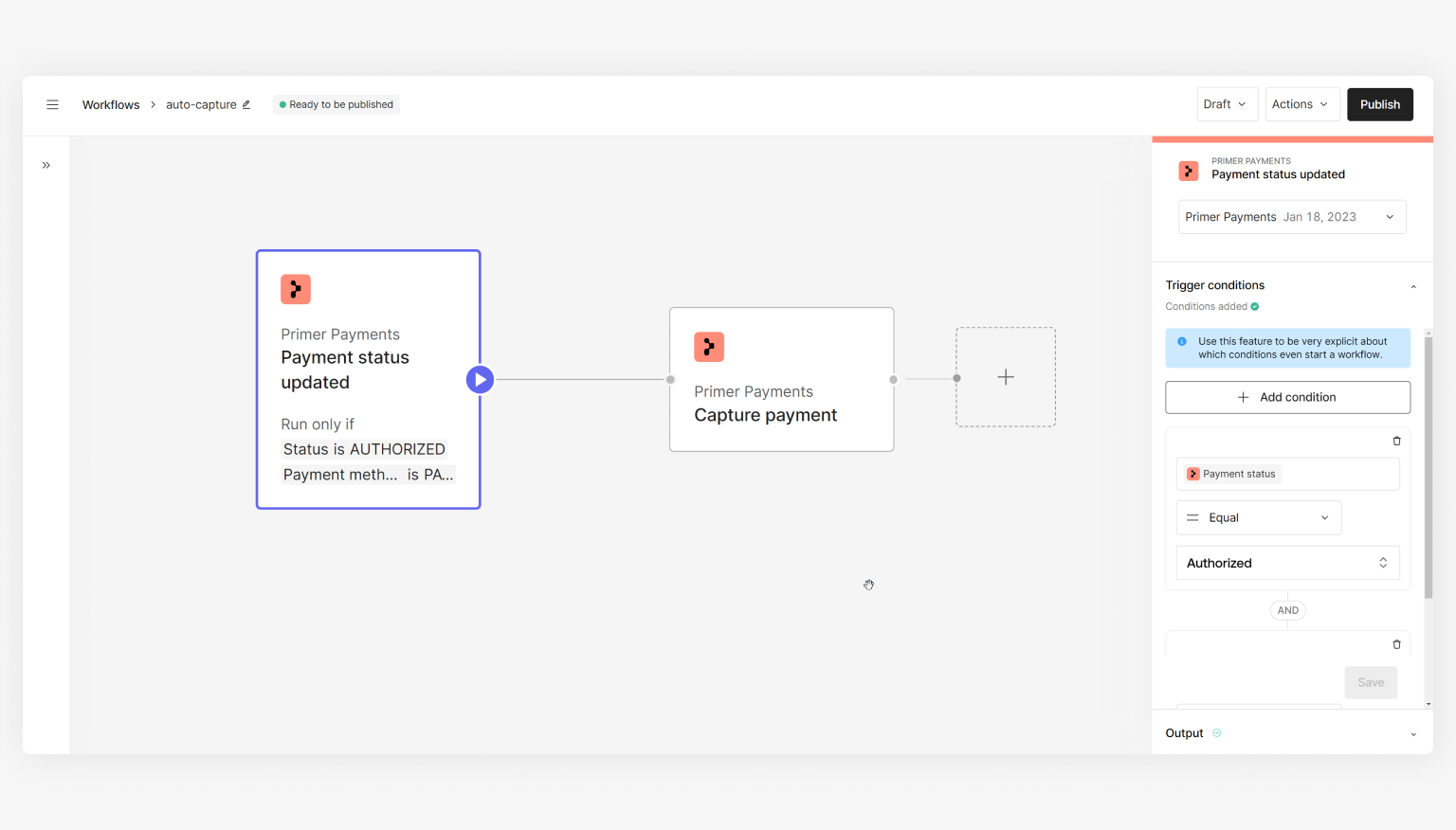
For asynchronous payment methods such as Multibanco, where the authorization doesn’t happen immediately after the authorization request, set up a workflow to capture once the payment is .
## Use cases
Below are some examples for inspiration:
For asynchronous payment methods such as Multibanco, where the authorization doesn’t happen immediately after the authorization request, set up a workflow to capture once the payment is .
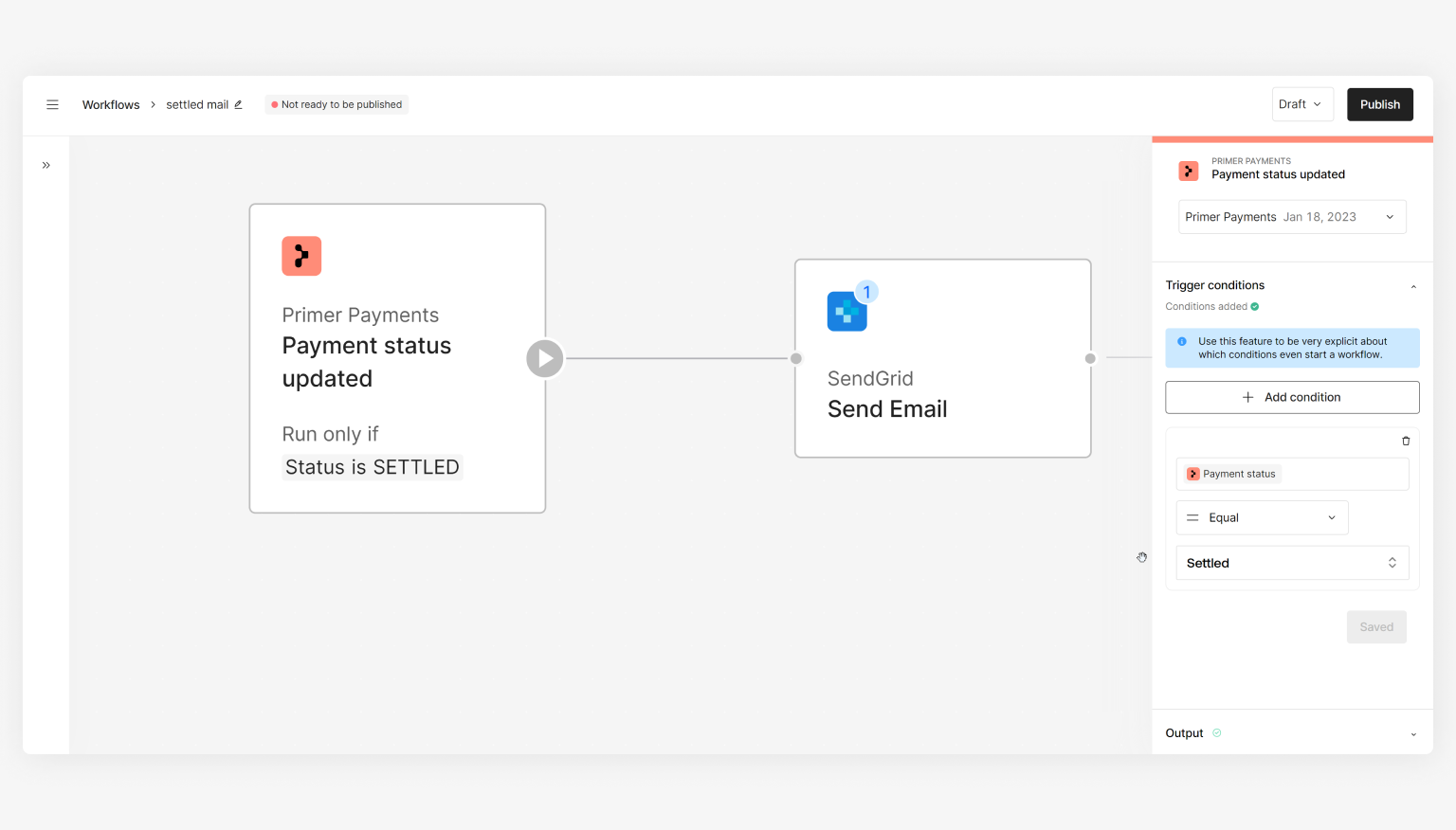
 When the payment is settled, send an email to the customer thanking them for their purchase.
 ## How to set up multiple workflows that use this Trigger
Trigger Conditions allow you to set conditions that determine if a workflow should be started. Only if both the triggering event and Trigger Conditions are met will your workflow start executing.
If you want to set up multiple workflows with this Trigger, it’s recommended you set Trigger Conditions when setting up your workflow - if not, more than one workflow may try to do something to the same payment which may not be intended.
You can use the `Status` field if you want a workflow per stage in the payment lifecycle.
## How to set up multiple workflows that use this Trigger
Trigger Conditions allow you to set conditions that determine if a workflow should be started. Only if both the triggering event and Trigger Conditions are met will your workflow start executing.
If you want to set up multiple workflows with this Trigger, it’s recommended you set Trigger Conditions when setting up your workflow - if not, more than one workflow may try to do something to the same payment which may not be intended.
You can use the `Status` field if you want a workflow per stage in the payment lifecycle.