> ## Documentation Index
> Fetch the complete documentation index at: https://primer.io/docs/llms.txt
> Use this file to discover all available pages before exploring further.
# Capture payment Action
export const TxnTag = ({status}) => {
const getStyles = status => {
const baseStyle = {
display: 'inline-block',
padding: '4px 8px',
borderRadius: '4px',
fontSize: '13px',
fontWeight: '400'
};
switch (status) {
case "PENDING":
return {
...baseStyle,
backgroundColor: '#ececec',
color: '#9f9f9f'
};
case "AUTHORIZED":
return {
...baseStyle,
backgroundColor: '#ecfdf5',
color: '#047857'
};
case "SETTLED":
case "PARTIALLY_SETTLED":
return {
...baseStyle,
backgroundColor: '#ecfdf5',
color: '#047857'
};
case "DECLINED":
case "FAILED":
return {
...baseStyle,
backgroundColor: '#fef2f2',
color: '#dc2626'
};
case "CANCELLED":
return {
...baseStyle,
backgroundColor: '#fefce8',
color: '#d78203'
};
case "SETTLING":
return {
...baseStyle,
backgroundColor: '#e0f2fe',
color: '#0c4a6e'
};
default:
return {
...baseStyle,
backgroundColor: '#f3f4f6',
color: '#374151'
};
}
};
return {status};
};
## What does this Action do?
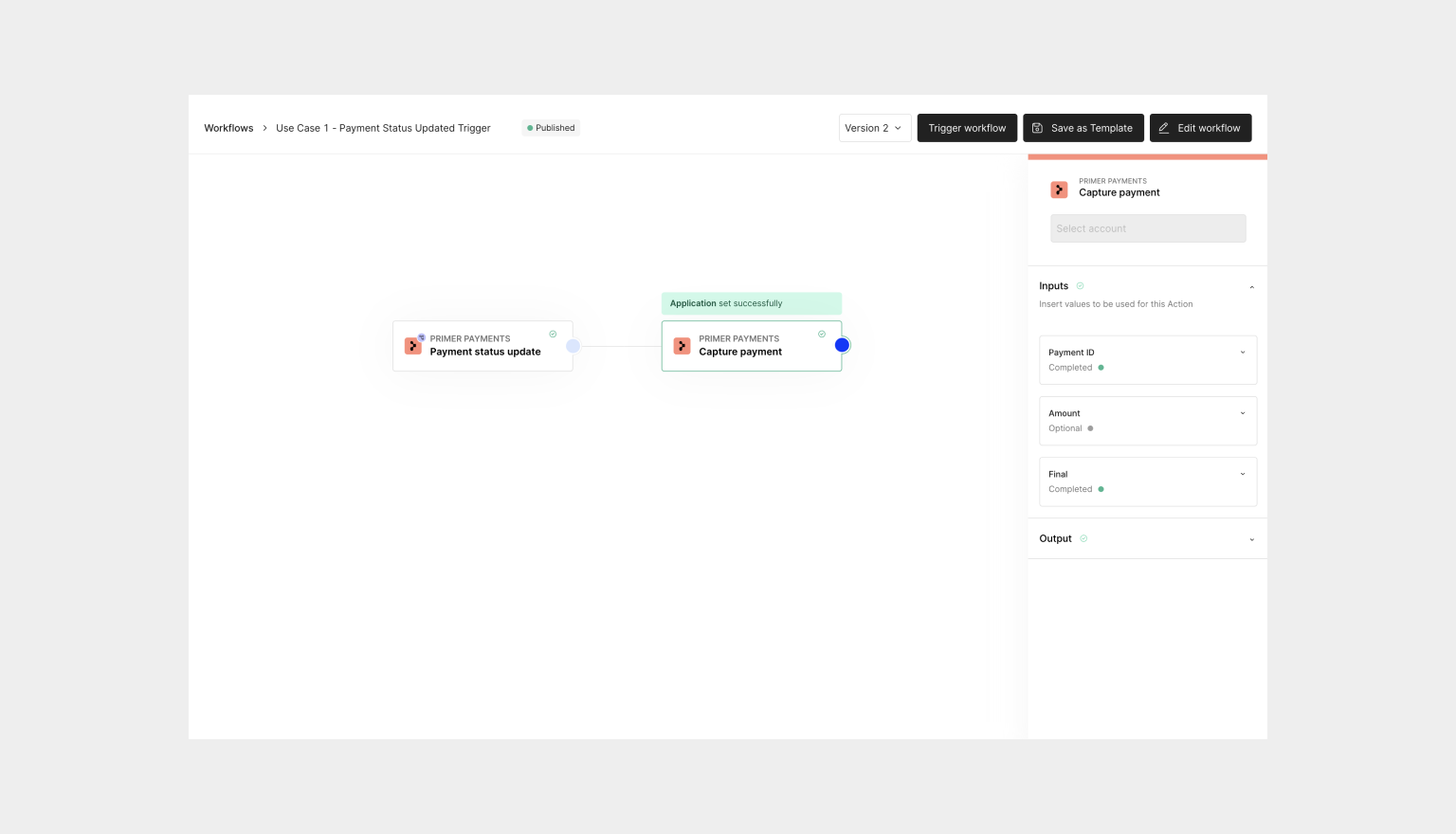
The "Capture payment" Action is responsible for sending the capture request. It enables you to define rules where you wish to perform an automatic capture of funds.
Learn more about capturing payments [here](/docs/manage-payments/capture-payment).
 If the payment is not in the state, you will not be able to perform a capture.
## How to use the Action
* Assign a `payment ID` - this will usually be the "Payment ID" from the ["Payment created" Trigger](/docs/workflows/apps/native-apps/primer-payments-app/payment-created-trigger) output or ["Payment status updated" Trigger](/docs/workflows/apps/native-apps/primer-payments-app/payment-status-updated-trigger) output
* \[Optional] Set `amount` input if you wish to [partial capture](/docs/manage-payments/capture-payment#partial-capture)
* \[Optional] Uncheck `final` input if you wish to do multiple automated partial captures
Capture can be asynchronous i.e. once the capture call is sent to the processor, it can take some time for the payment to become . Learn more [here](/docs/manage-payments/capture-payment#handle-asynchronous-capture) and how to handle these scenarios.
## Use cases
All your payments must be captured to charge the customer’s account and transfer the funds to your merchant account. Based on your needs, you can utilize this action in a few ways. Below are some examples for inspiration:
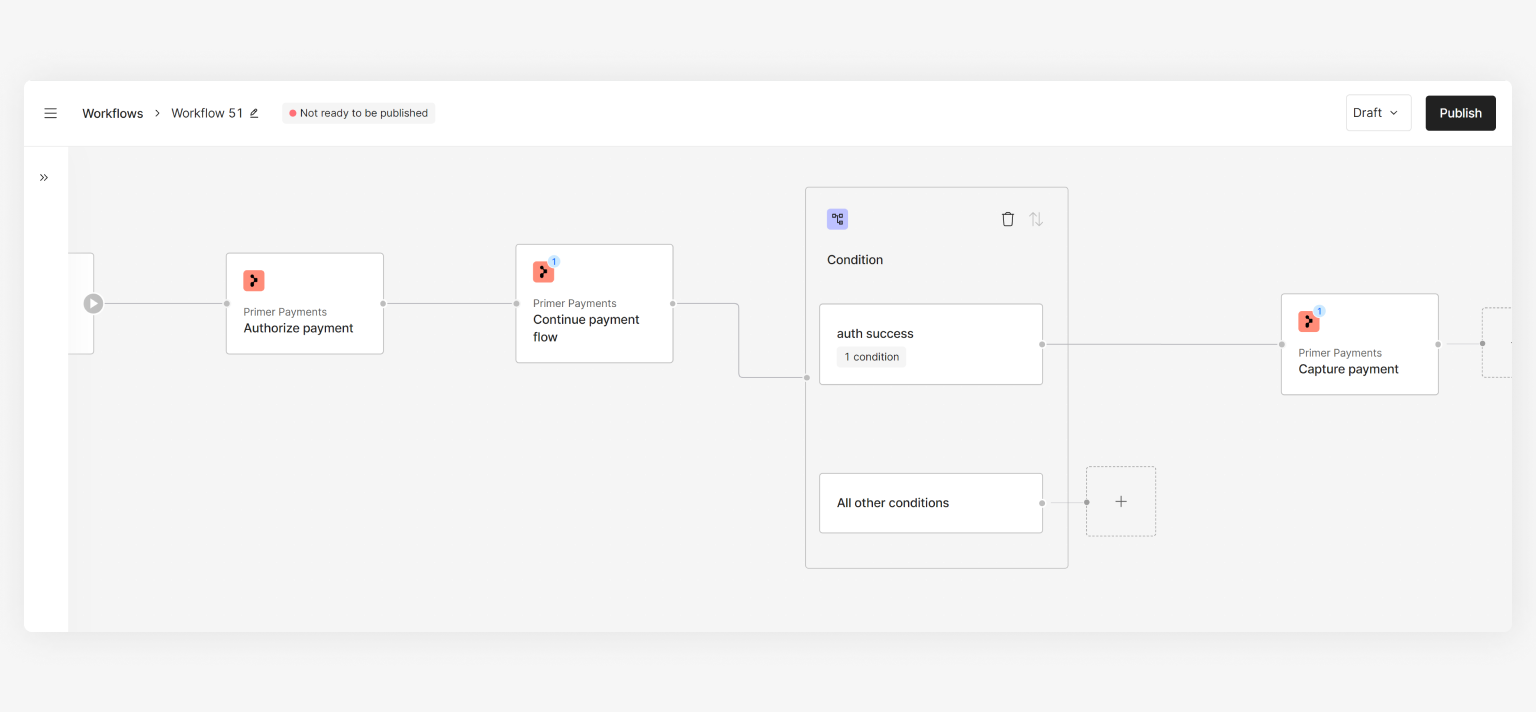
Simple payment flow that if authorized, shows the success screen then captures, else it shows the failure screen to the customer.
If the payment is not in the state, you will not be able to perform a capture.
## How to use the Action
* Assign a `payment ID` - this will usually be the "Payment ID" from the ["Payment created" Trigger](/docs/workflows/apps/native-apps/primer-payments-app/payment-created-trigger) output or ["Payment status updated" Trigger](/docs/workflows/apps/native-apps/primer-payments-app/payment-status-updated-trigger) output
* \[Optional] Set `amount` input if you wish to [partial capture](/docs/manage-payments/capture-payment#partial-capture)
* \[Optional] Uncheck `final` input if you wish to do multiple automated partial captures
Capture can be asynchronous i.e. once the capture call is sent to the processor, it can take some time for the payment to become . Learn more [here](/docs/manage-payments/capture-payment#handle-asynchronous-capture) and how to handle these scenarios.
## Use cases
All your payments must be captured to charge the customer’s account and transfer the funds to your merchant account. Based on your needs, you can utilize this action in a few ways. Below are some examples for inspiration:
Simple payment flow that if authorized, shows the success screen then captures, else it shows the failure screen to the customer.
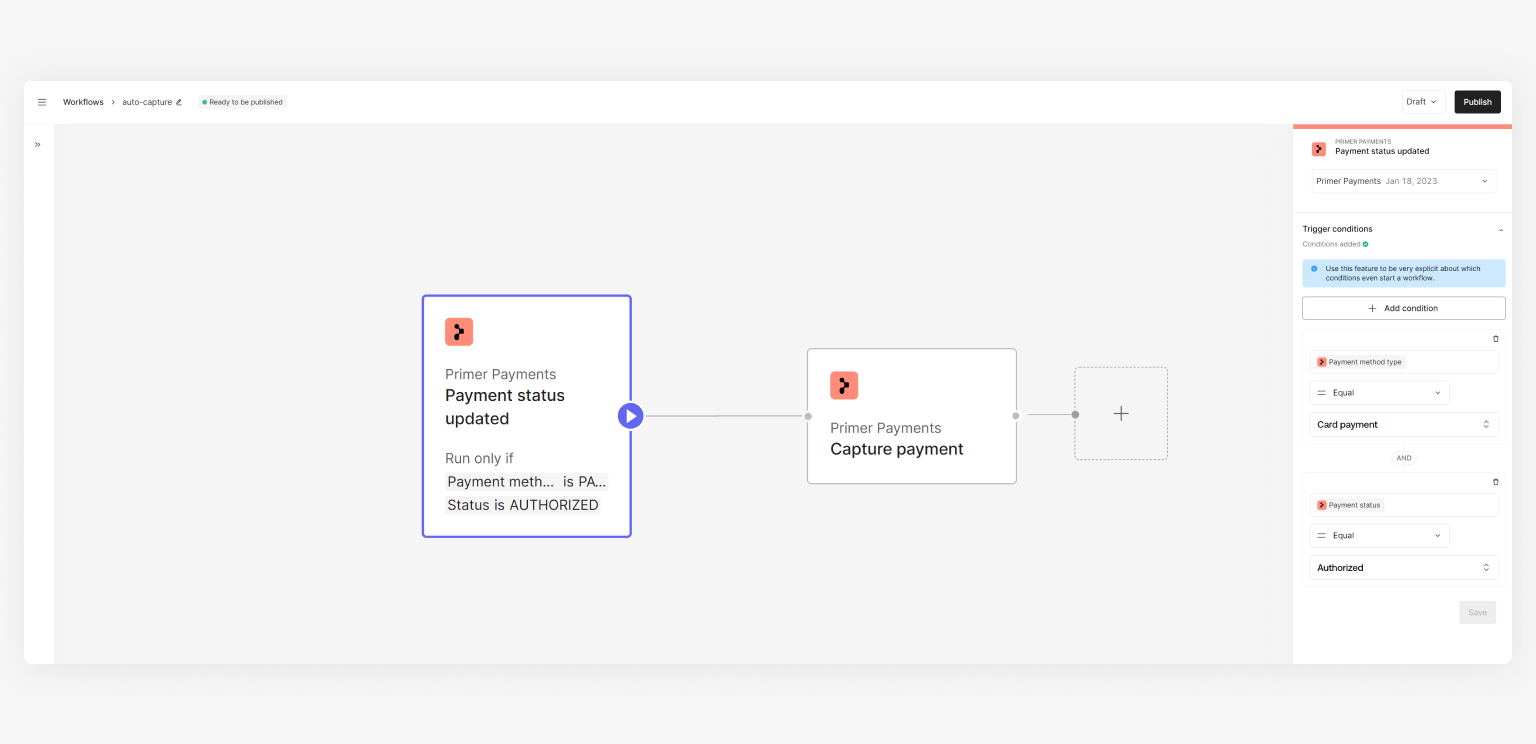
 Separate workflow using the "Payment status updated" Trigger to always automatically capture if the status becomes . This is very useful if you have multiple workflows using the "Payment created" Trigger but you want to handle authorized payments in one way (in this case, always capture).
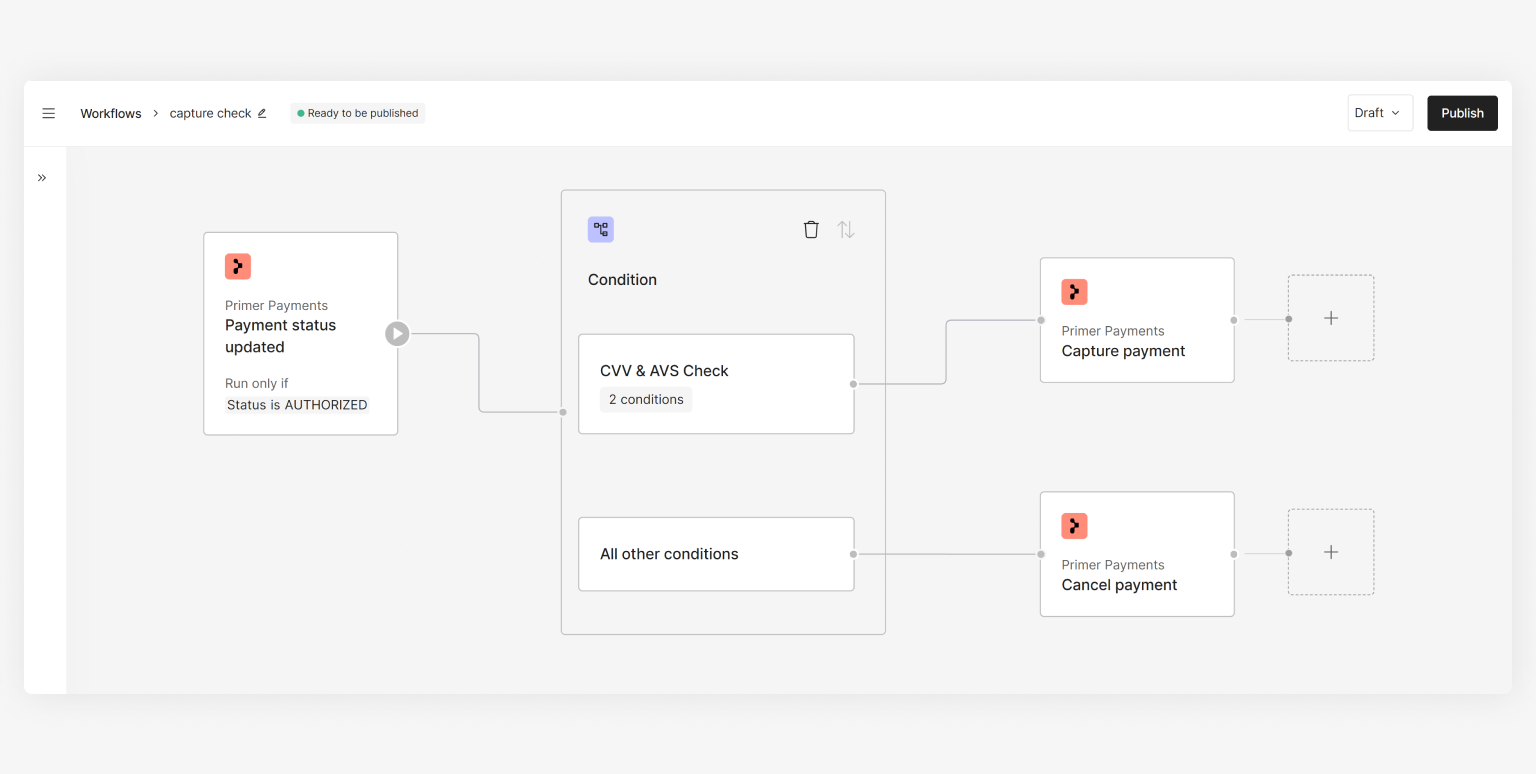
 Single workflow to determine whether to capture the payment or not based on the results of the CVV and AVS checks.