> ## Documentation Index
> Fetch the complete documentation index at: https://primer.io/docs/llms.txt
> Use this file to discover all available pages before exploring further.
# Advanced Metadata Mapper
## Configure how your metadata is mapped
Primer's advanced metadata mapping tool allows you to specify how information from your [client session](/docs/checkout/client-session) `metadata` object is mapped to the payload we send to third-party payment connections.
This means:
* You can build custom rules and pass the needed data without Primer being involved
* You can pass fields as part of the third-party metadata objects to activate the relevant fraud flows and rules-based mappings on the third-party processor
## Supported connections
This functionality is only supported for authorization on the following connections:
* Adyen
* Airwallex
* Braintree
* Checkout.com
* Cybersource
* Everypay
* J.P. Morgan Chase (JPMC)
* Klarna
* Merchant Warrior
* Monext
* Nuvei
* Payplug
* Stripe
* Thunes
* Trust Payments
* Worldpay
* Worldline Connect
* Worldline Direct
This functionality is supported for capture on the following connections:
* Braintree
* Cybersource
* Payplug
* Worldline Direct
This functionality is supported for pre-authorization and post-authorization fraud checks.
## How does it work?
### Step 1: Prepare the metadata mapping
* Navigate to an existing integration that you have configured on your Primer dashboard and select **Advanced mapping**. The example below is for Stripe.
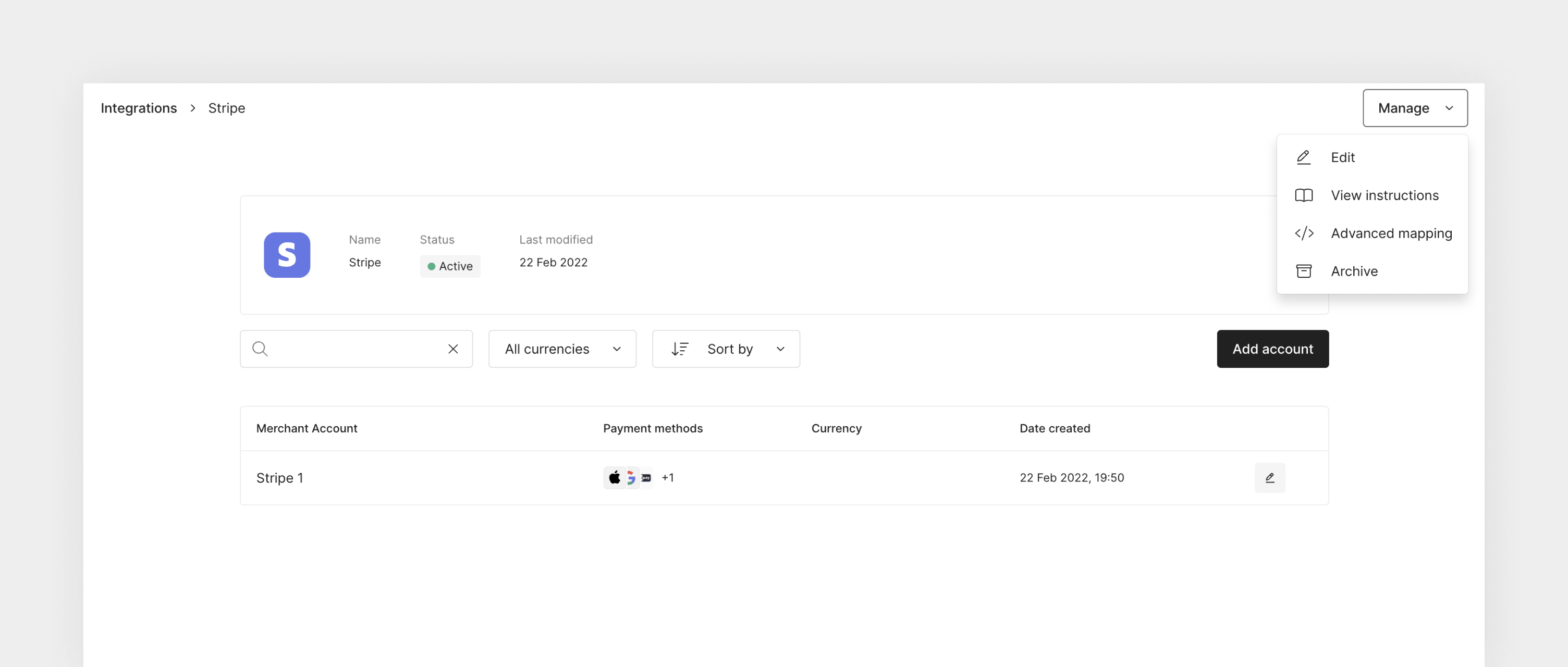
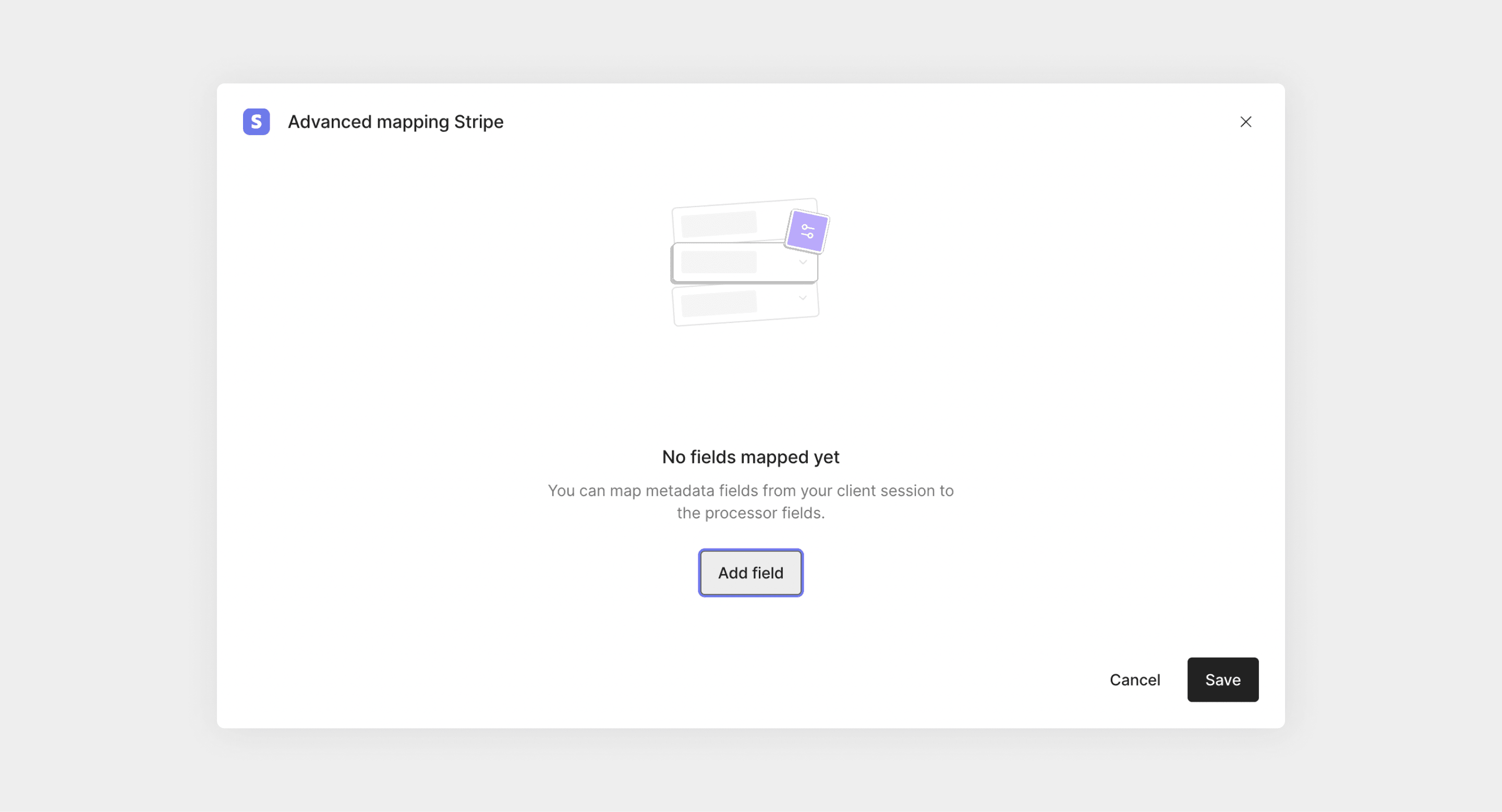
* You can now add as many fields as you want.
The mapping respects nested fields as well. You can use dot notation to specify the nested field locations.
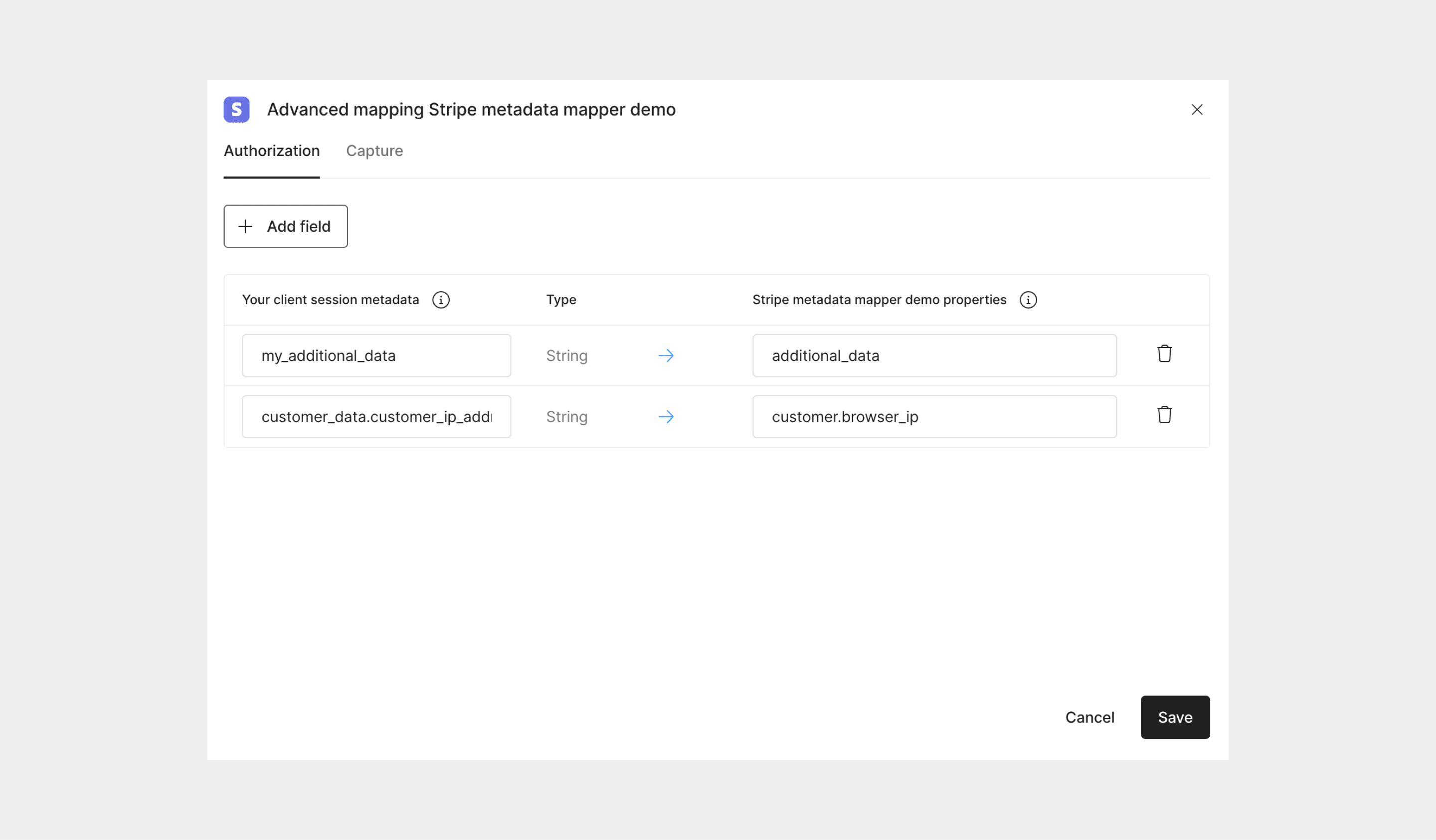
If the connection you wish to add fields to supports authorization and capture, you can specify the fields for both
the authorization and capture requests by choosing the appropriate tab.
### Step 2: Make the payment request
All you need to do now is pass the correct metadata fields in the client session if the payment is made via Universal Checkout, or directly in the payment request.
Below is an example client session or payment request payload for the mapping above:
```json JSON theme={"dark"}
{
"orderId": "order-123",
"amount": 3000,
"currencyCode": "GBP",
"customerId": "cust-123",
"metadata": {
"customer_data": {
"customer_ip_address": "127.0.0.1"
},
"my_additional_data": {
"field_1": "foo",
"field_2": "bar"
},
"some_unmapped_field": 123
}
}
```
### Step 3: Capture your payment with metadata
If you require metadata to be passed to the third-party processor when capturing a payment, you can do so by passing the metadata in the capture request, alternatively, you can also add the metadata to the client session initially ready for use in the capture request.
Below is an example capture request payload for the mapping above:
```json JSON theme={"dark"}
{
"amount": 9,
"final": false,
"metadata": {
"customer_data": {
"customer_ip_address": "127.0.0.1"
},
"my_additional_data": {
"field_1": "foo",
"field_2": "bar"
},
"some_unmapped_field": 123
}
}
```
The resulting request to the third-party (Stripe in this example) will then contain your mapped fields per action.
## Current Limitations
### Limitations with arrays
We currently do not fully support mapping array fields with custom objects as elements. The following is an example of this:
```json JSON theme={"dark"}
{
"amount": 9,
"final": false,
"metadata": {
"customer_data": {
"customer_ip_address": "127.0.0.1"
},
"my_additional_array_field": [
{
"my_additional_array_element": {
"field_1": "foo",
"field_2": "bar"
}
}
]
}
}
```
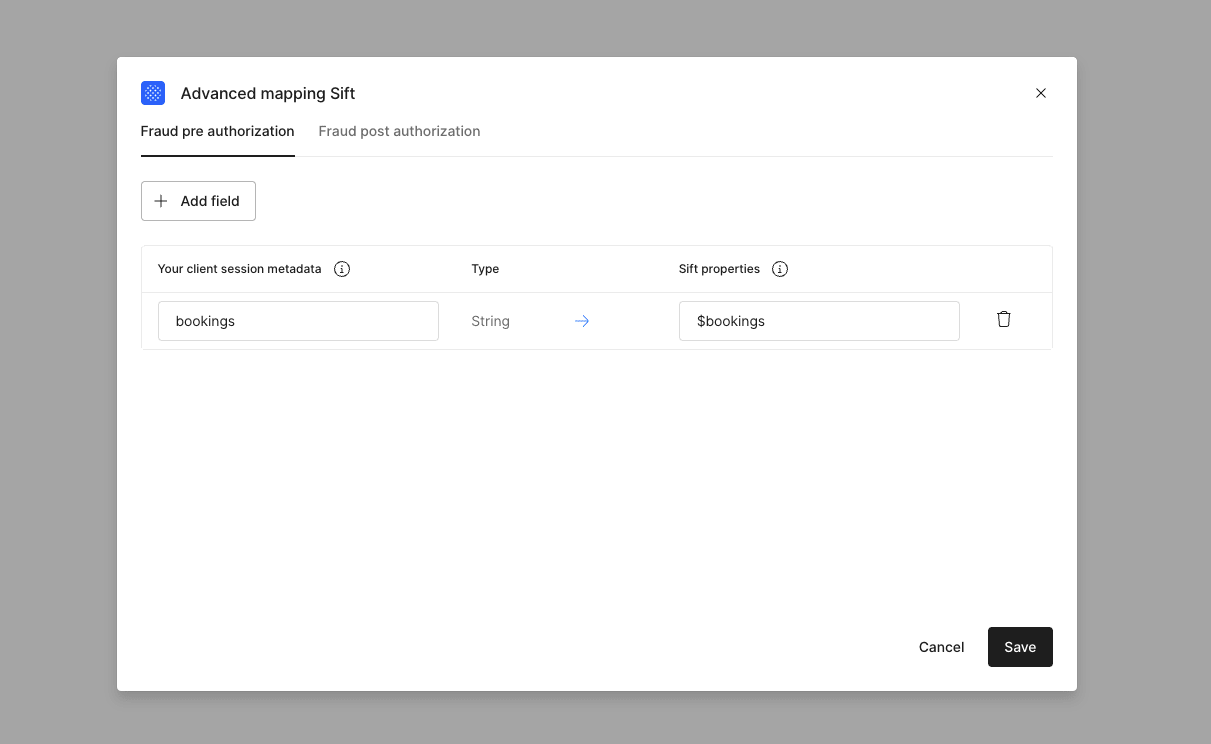
However, as a workaround to this, it is possible to just map the array field in metadata mapper, without specifying the
details of the elements of the array. This has a small caveat though: since we are not mapping the array elements, we need
to add the field value in the payload in the format expected from the connection.
To illustrate this workaround, we can consider an example from Sift. Since it requires the fields to be prefixed with `$`,
the usage of their `$bookings` field would look like the following:
```json JSON theme={"dark"}
{
"amount": 9,
"final": false,
"metadata": {
"bookings": [
{
"$booking_type": "$accomodation",
"$start_time": 1678062720000,
"$end_time": 1679062720000,
"$location": {
"$name": "Marriot New London",
"$phone": "1-415-555-6041",
"$address_1": "2100 Main Street",
"$city": "New London",
"$region": "New Hampshire",
"$country": "US",
"$zipcode": "03257"
},
"$room_type": "Seaside View Queen",
"$price": 103082000,
"$currency_code": "USD",
"$quantity": 2
}
]
}
}
```
In the account, the metadata mapper would look like the following:
 ### Limitations with decimals
Decimal types are not supported. If this type is passed and used in metadata mapping, it will be sent to the third party as a string type.
For example, if you send the following metadata in your request to Primer
```json theme={"dark"}
{
...,
"metadata": {
"decimal_number": 101.95
}
}
```
and this is used in metadata mapping, it will be sent as
```json theme={"dark"}
{
...,
"mapped_field": "101.95"
}
```
### Limitations with decimals
Decimal types are not supported. If this type is passed and used in metadata mapping, it will be sent to the third party as a string type.
For example, if you send the following metadata in your request to Primer
```json theme={"dark"}
{
...,
"metadata": {
"decimal_number": 101.95
}
}
```
and this is used in metadata mapping, it will be sent as
```json theme={"dark"}
{
...,
"mapped_field": "101.95"
}
```