> ## Documentation Index
> Fetch the complete documentation index at: https://primer.io/docs/llms.txt
> Use this file to discover all available pages before exploring further.
# Manual payment approval
> Approve or abort each payment from your backend before Primer creates it.
**New feature.** Manual payment approval is available to all merchants; no allowlisting or account setup is required. Because it's new, **test your integration end to end in the [sandbox](/docs/testing/overview) before going live in production.** Available on the **Web** SDK ([Primer Checkout](/docs/checkout/primer-checkout/installation)) today; iOS and Android are coming.
By default, Primer Checkout creates and processes a payment automatically as soon as the customer submits their details. With **manual payment approval**, Primer pauses after tokenization and waits for your backend to explicitly approve (or abort) the payment before it is created. Once you approve, Primer resumes control and manages the rest of the process, including 3DS, redirects, retries, and webhooks.
Manual payment approval gives your backend a decision point between tokenization and payment creation, without handing it the full payment lifecycle.
## When to use it
Use manual payment approval when a server-side decision must happen *after* the customer enters their payment details but *before* the payment is created. For example:
* Running a fraud or risk check against the card BIN or network.
* Confirming stock or inventory at the last moment.
* Applying business rules that decide whether the payment should proceed at all.
If you don't need a decision point in the middle of the flow, use the [default automatic flow](/docs/checkout/primer-checkout/first-payment) instead.
## How it works
The flow is approval-based and payment-method agnostic, and the same sequence works for cards and APMs.
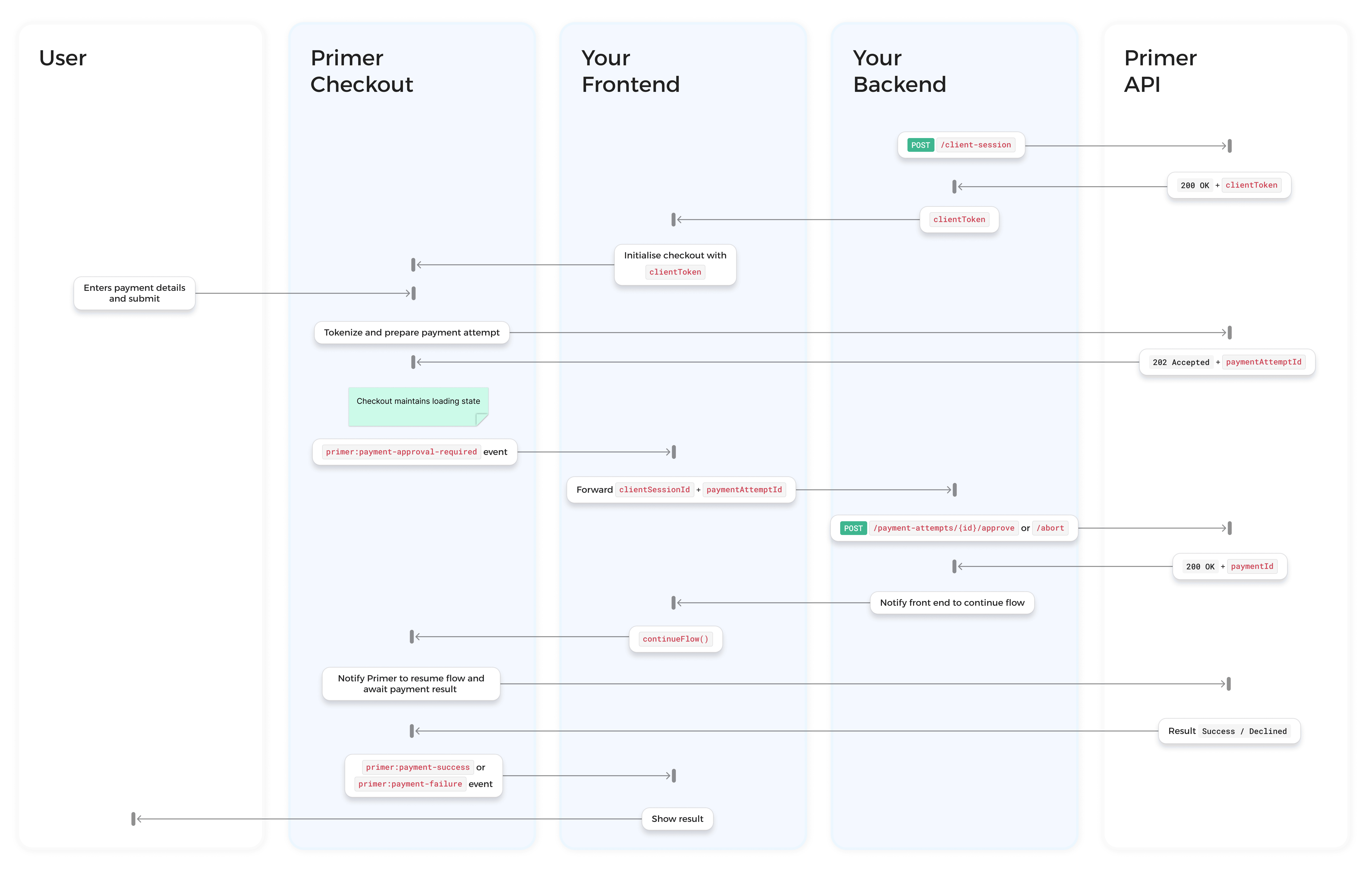 1. **Your server creates a client session** with `approvalMode: "MANUAL"`.
2. **The customer submits** their payment details. Primer tokenizes the payment method and prepares a *payment attempt*, but does **not** create the payment yet.
3. **The checkout emits `primer:payment-approval-required`** with the `paymentAttemptId`. The SDK maintains a loading state.
4. **Your backend decides** and calls either `/approve` (create the payment) or `/abort` (cancel it).
5. **Your frontend calls `continueFlow()`**. Primer fetches the result and resolves the checkout UI, including any 3DS challenge, automatically.
Approval is scoped to a single **payment attempt**, not the whole session. If a payment is declined, the customer can retry within the same session, which creates a new attempt. See [Retries](#retries-after-a-failed-payment).
## Prerequisites
* Primer Checkout already integrated (see [First payment](/docs/checkout/primer-checkout/first-payment)).
* An [API key](/docs/api-reference/get-started/authentication) with the following scopes:
* `client_tokens:write` for creating the client session.
* `transactions:authorize` for approving a payment attempt.
* `transactions:cancel` for aborting a payment attempt.
## Step 1. Create a client session in MANUAL mode
Create the [client session](/docs/checkout/client-session) on your server and set `approvalMode` to `MANUAL`. This is set at creation only and is immutable; it cannot be changed with `PATCH /client-session`.
```bash theme={"dark"}
curl -X POST https://api.primer.io/client-session \
-H "X-Api-Key: YOUR_API_KEY" \
-H "X-Api-Version: 2.4" \
-H "Content-Type: application/json" \
-d '{
"orderId": "order-123",
"currencyCode": "USD",
"amount": 1000,
"approvalMode": "MANUAL"
}'
```
Pass the returned `clientToken` to your frontend and render the checkout:
```html theme={"dark"}
```
## Step 2. Listen for the approval event
When the customer confirms their intention to pay, the checkout dispatches `primer:payment-approval-required` instead of creating the payment. Register a listener on the checkout element:
```javascript theme={"dark"}
const checkout = document.querySelector('primer-checkout');
checkout.addEventListener('primer:payment-approval-required', async (event) => {
const { clientSessionId, paymentAttemptId, paymentMethodToken, continueFlow } = event.detail;
// Send the attempt to your backend, which decides whether to approve or abort.
// Your frontend does not need to know which was called.
await fetch('/my-backend/handle-payment-approval', {
method: 'POST',
headers: { 'Content-Type': 'application/json' },
body: JSON.stringify({ clientSessionId, paymentAttemptId }),
});
// Resume the SDK once your backend has responded.
await continueFlow();
});
```
### Event payload
`primer:payment-approval-required` is a [`CustomEvent`](https://developer.mozilla.org/en-US/docs/Web/API/CustomEvent); its data is on `event.detail`.
| Property | Type | Description |
| -------------------- | --------------------- | --------------------------------------------------------------------------------------------------------------------------------------------------------------------------------------- |
| `clientSessionId` | `string` | The client session identifier. |
| `paymentAttemptId` | `string` | Identifies the specific attempt. **Required** when calling `/approve` or `/abort`. |
| `paymentMethodToken` | `PaymentMethodToken` | The tokenized payment method, including `paymentInstrumentType` and `paymentInstrumentData` (e.g. card `network`, `last4Digits`, `cardholderName`). Use it to run fraud or risk checks. |
| `continueFlow` | `() => Promise` | Call after your backend has approved or aborted. Resolves once the checkout shows the result screen. |
| `timestamp` | `number` | Unix timestamp (seconds) when the event was dispatched. |
If the customer refreshes the page while an attempt is still awaiting approval, the SDK **re-emits** `primer:payment-approval-required`.
Use `paymentAttemptId` to deduplicate on your backend. If you've already approved that attempt, skip the second approval and just call `continueFlow()`.
## Step 3. Approve or abort from your backend
Your backend uses the `paymentAttemptId` from the event to either approve or abort the attempt.
### Approve
Approving triggers payment creation. Primer creates the payment, runs any required action (such as 3DS), and processes it.
```bash theme={"dark"}
curl -X POST https://api.primer.io/payment-attempts/{paymentAttemptId}/approve \
-H "X-Api-Key: YOUR_API_KEY" \
-H "X-Api-Version: 2.4"
```
The request does not accept any properties in the body; the attempt is identified by the path. A `200 OK` confirms the approval was accepted and Primer has resumed control:
```json theme={"dark"}
{
"paymentAttemptId": "6c5d3a30-3c2e-4f55-9d8e-5b3d5e3a5c7f",
"paymentId": "IHQlakKC"
}
```
Use `paymentId` to look the payment up later via the [Payments API](/docs/api-reference/v2.4/api-reference/payments-api/get-a-payment). The `200` confirms approval only; it does **not** convey the payment outcome (success, decline, or 3DS required). The SDK resolves the outcome after you call `continueFlow()`.
To update the session before approving (for example to attach an invoice ID to `metadata`), call [`PATCH /client-session`](/docs/api-reference/v2.4/api-reference/client-session-api/update-client-session) *before* `/approve`; the approve endpoint does not accept session updates.
Sending `metadata` in a `PATCH` **replaces the entire `metadata` object; it does not merge.** Sending only your new key wipes any keys already on the session, so send the full `metadata` object with the existing keys plus the new one.
### Abort
Aborting cancels the attempt. No payment is created and the tokenized payment method is invalidated.
```bash theme={"dark"}
curl -X POST https://api.primer.io/payment-attempts/{paymentAttemptId}/abort \
-H "X-Api-Key: YOUR_API_KEY" \
-H "X-Api-Version: 2.4" \
-H "Content-Type: application/json" \
-d '{ "reason": "fraud-check-failed" }'
```
The `reason` field is optional free text; do not include cardholder data. Primer stores it for internal observability only: it is not currently shown in the Dashboard or retrievable via the API. A `200 OK` returns `{ "paymentAttemptId": "..." }`.
### Error responses
| Status | `errorId` | Meaning |
| ------ | --------------------------------- | -------------------------------------------------------------------------------------------------------------------- |
| `404` | `PaymentAttemptNotFound` | The attempt does not exist or belongs to another account. |
| `409` | `ClientSessionNotManual` | The session is not in `MANUAL` approval mode. |
| `409` | `InvalidPaymentAttemptTransition` | The attempt is not the current attempt for its session, or is already in a terminal state. |
| `409` | `PaymentAttemptSessionConflict` | The attempt cannot be approved, as client session updates have been made to disallowed fields since attempt creation |
| `409` | `IdempotencyKeyAlreadyExists` | A concurrent or duplicate approve already created a payment for this attempt. (`/approve` only.) |
| `410` | `PaymentAttemptExpired` | The attempt expired (see [Timeout](#timeout)) and can no longer be approved or aborted. |
`paymentAttemptId` acts as the idempotency key, so a duplicate or retried `/approve` never creates a second payment.
A replay does **not** return the original `200`. Instead it returns `409 IdempotencyKeyAlreadyExists`, which confirms the payment was already created for that attempt (for example, if your first call succeeded but its response timed out).
Treat that `409` as "already approved": look the payment up via the [Payments API](/docs/api-reference/v2.4/api-reference/payments-api/get-a-payment) or the webhooks below, and don't create a new attempt.
## Step 4. Resume the checkout
After your backend responds, call `continueFlow()` from the event handler. The SDK fetches the client session and the resulting payment and resolves the UI on its own; you don't route payment results back to the SDK.
* **Approved and successful** → the checkout shows its success screen.
* **Approved and requires 3DS** → the SDK presents the 3DS challenge, then resolves to success or failure automatically.
* **Approved but declined, or aborted** → the checkout unlocks the payment method form and shows a message that the payment could not be completed. The customer can retry with the same or a different payment method, which starts a new attempt.
The final result is delivered through the **same events as the automatic flow**. Listen for `primer:payment-success` and `primer:payment-failure` to react to the outcome. You don't need any approval-specific result handling.
```javascript theme={"dark"}
checkout.addEventListener('primer:payment-success', (event) => {
const { payment } = event.detail;
window.location.href = `/confirmation?order=${payment.orderId}`;
});
checkout.addEventListener('primer:payment-failure', (event) => {
const { error } = event.detail;
console.error('Payment failed:', error.diagnosticsId);
});
```
These events update the customer-facing UI. The source of truth for your **backend** is webhooks; a backend-driven integration shouldn't rely on the browser to confirm a payment.
Once you approve, the payment follows the normal Primer payment lifecycle, so your server receives the standard [`PAYMENT.STATUS`](/docs/api-reference/endpoints/v2.4/payment-webhooks/payment-status-update) webhook as the payment moves to `AUTHORIZED`, `DECLINED`, or a failed state, exactly as in the automatic flow.
Use those webhooks to fulfill the order and reconcile. See [Configure webhooks](/docs/api-reference/get-started/configure-webhooks).
`continueFlow()` is the primary signal, but as a safety net the SDK also polls automatically after a few seconds if `continueFlow()` is never called (for example after a frontend crash). You should still always call it for the best experience.
## Full example
```javascript theme={"dark"}
const checkout = document.querySelector('primer-checkout');
checkout.addEventListener('primer:payment-approval-required', async (event) => {
const { clientSessionId, paymentAttemptId, paymentMethodToken, continueFlow } = event.detail;
try {
// Your backend decides whether to approve or abort, using paymentAttemptId.
const response = await fetch('/my-backend/handle-payment-approval', {
method: 'POST',
headers: { 'Content-Type': 'application/json' },
body: JSON.stringify({
clientSessionId,
paymentAttemptId,
network: paymentMethodToken.paymentInstrumentData?.network,
}),
});
if (!response.ok) {
console.error('Approval decision failed');
}
} finally {
// Always resume the SDK so the customer is never stuck on a spinner.
await continueFlow();
}
});
```
On your backend, approve or abort the attempt:
```javascript theme={"dark"}
// POST /my-backend/handle-payment-approval
app.post('/my-backend/handle-payment-approval', async (req, res) => {
const { paymentAttemptId } = req.body;
const fraudOk = await runFraudCheck(req.body);
const endpoint = fraudOk ? 'approve' : 'abort';
const primerResponse = await fetch(
`https://api.primer.io/payment-attempts/${paymentAttemptId}/${endpoint}`,
{
method: 'POST',
headers: {
'X-Api-Key': process.env.PRIMER_API_KEY,
'X-Api-Version': '2.4',
'Content-Type': 'application/json',
},
body: fraudOk ? undefined : JSON.stringify({ reason: 'fraud-check-failed' }),
},
);
res.status(primerResponse.ok ? 200 : 502).json(await primerResponse.json());
});
```
## Lifecycle and edge cases
### While awaiting approval
Between the `primer:payment-approval-required` event and your `continueFlow()` call, the checkout is locked: it shows a loading state and the customer cannot change payment method or submit again. This prevents a race between a new tokenization and an in-flight `/approve`. The checkout reports this through `primer:state-change` as `isProcessing: true`. Once you call `continueFlow()` and the attempt resolves, the checkout unlocks, showing the result on success, or returning the customer to the payment form to retry after a decline.
### Retries after a failed payment
A payment decline (card declined, 3DS failure, abandonment) is a payment-level outcome; it does not reopen the attempt. To retry, the customer selects a payment method and re-enters their details, which tokenizes a new attempt within the same session and emits a fresh `primer:payment-approval-required` event. You don't need a new client session.
Only one attempt can be active at a time. A new attempt can only start once the previous one is in a terminal state (declined, aborted, or expired). Retries are bounded by the session's lifetime (24 hours).
### 3DS
3DS is handled automatically after approval; you don't write any 3DS code. When the customer abandons or fails a 3DS challenge, Primer treats it as a payment decline and the standard retry path applies.
### Timeout
While your backend decides, the customer waits on a loading state and the checkout is locked (see [While awaiting approval](#while-awaiting-approval)), so make the decision quickly.
If your backend calls neither `/approve` nor `/abort` within **90 seconds**, the attempt expires automatically. No payment is created and the tokenized payment method is invalidated. The checkout unlocks the payment method form with a message that the payment could not be completed, and the customer can retry. The 90-second window is fixed and is not configurable. A subsequent `/approve` or `/abort` on an expired attempt returns `410 PaymentAttemptExpired`.
Respond well within the 90-second window. If the attempt expires, it's lost: the customer has to re-enter their payment details to start a new attempt, which hurts conversion. Keep the approve/abort decision fast (fraud and risk checks at this point typically complete in a few seconds) and move any slow or non-blocking work to an asynchronous process *after* you've responded.
### Browser refresh
If the customer refreshes mid-flow, the SDK re-reads the session state and resumes accordingly:
| Attempt state on refresh | What the customer sees |
| ------------------------------------------ | -------------------------------------------------------------------------------------------------------------- |
| No attempt yet | Payment method form (normal checkout) |
| Awaiting approval | Loading state; `primer:payment-approval-required` is re-emitted |
| Approved, processing | Loading state, then resolves to the result |
| Approved, succeeded | Success screen |
| Approved but declined, aborted, or expired | The payment method form unlocks with a message that the payment could not be completed; the customer can retry |
## See also
Full reference for primer:payment-approval-required and all other events
API reference for the approve endpoint
API reference for the abort endpoint
Create and configure a client session
Move an existing manual payment creation integration to this flow
1. **Your server creates a client session** with `approvalMode: "MANUAL"`.
2. **The customer submits** their payment details. Primer tokenizes the payment method and prepares a *payment attempt*, but does **not** create the payment yet.
3. **The checkout emits `primer:payment-approval-required`** with the `paymentAttemptId`. The SDK maintains a loading state.
4. **Your backend decides** and calls either `/approve` (create the payment) or `/abort` (cancel it).
5. **Your frontend calls `continueFlow()`**. Primer fetches the result and resolves the checkout UI, including any 3DS challenge, automatically.
Approval is scoped to a single **payment attempt**, not the whole session. If a payment is declined, the customer can retry within the same session, which creates a new attempt. See [Retries](#retries-after-a-failed-payment).
## Prerequisites
* Primer Checkout already integrated (see [First payment](/docs/checkout/primer-checkout/first-payment)).
* An [API key](/docs/api-reference/get-started/authentication) with the following scopes:
* `client_tokens:write` for creating the client session.
* `transactions:authorize` for approving a payment attempt.
* `transactions:cancel` for aborting a payment attempt.
## Step 1. Create a client session in MANUAL mode
Create the [client session](/docs/checkout/client-session) on your server and set `approvalMode` to `MANUAL`. This is set at creation only and is immutable; it cannot be changed with `PATCH /client-session`.
```bash theme={"dark"}
curl -X POST https://api.primer.io/client-session \
-H "X-Api-Key: YOUR_API_KEY" \
-H "X-Api-Version: 2.4" \
-H "Content-Type: application/json" \
-d '{
"orderId": "order-123",
"currencyCode": "USD",
"amount": 1000,
"approvalMode": "MANUAL"
}'
```
Pass the returned `clientToken` to your frontend and render the checkout:
```html theme={"dark"}
```
## Step 2. Listen for the approval event
When the customer confirms their intention to pay, the checkout dispatches `primer:payment-approval-required` instead of creating the payment. Register a listener on the checkout element:
```javascript theme={"dark"}
const checkout = document.querySelector('primer-checkout');
checkout.addEventListener('primer:payment-approval-required', async (event) => {
const { clientSessionId, paymentAttemptId, paymentMethodToken, continueFlow } = event.detail;
// Send the attempt to your backend, which decides whether to approve or abort.
// Your frontend does not need to know which was called.
await fetch('/my-backend/handle-payment-approval', {
method: 'POST',
headers: { 'Content-Type': 'application/json' },
body: JSON.stringify({ clientSessionId, paymentAttemptId }),
});
// Resume the SDK once your backend has responded.
await continueFlow();
});
```
### Event payload
`primer:payment-approval-required` is a [`CustomEvent`](https://developer.mozilla.org/en-US/docs/Web/API/CustomEvent); its data is on `event.detail`.
| Property | Type | Description |
| -------------------- | --------------------- | --------------------------------------------------------------------------------------------------------------------------------------------------------------------------------------- |
| `clientSessionId` | `string` | The client session identifier. |
| `paymentAttemptId` | `string` | Identifies the specific attempt. **Required** when calling `/approve` or `/abort`. |
| `paymentMethodToken` | `PaymentMethodToken` | The tokenized payment method, including `paymentInstrumentType` and `paymentInstrumentData` (e.g. card `network`, `last4Digits`, `cardholderName`). Use it to run fraud or risk checks. |
| `continueFlow` | `() => Promise` | Call after your backend has approved or aborted. Resolves once the checkout shows the result screen. |
| `timestamp` | `number` | Unix timestamp (seconds) when the event was dispatched. |
If the customer refreshes the page while an attempt is still awaiting approval, the SDK **re-emits** `primer:payment-approval-required`.
Use `paymentAttemptId` to deduplicate on your backend. If you've already approved that attempt, skip the second approval and just call `continueFlow()`.
## Step 3. Approve or abort from your backend
Your backend uses the `paymentAttemptId` from the event to either approve or abort the attempt.
### Approve
Approving triggers payment creation. Primer creates the payment, runs any required action (such as 3DS), and processes it.
```bash theme={"dark"}
curl -X POST https://api.primer.io/payment-attempts/{paymentAttemptId}/approve \
-H "X-Api-Key: YOUR_API_KEY" \
-H "X-Api-Version: 2.4"
```
The request does not accept any properties in the body; the attempt is identified by the path. A `200 OK` confirms the approval was accepted and Primer has resumed control:
```json theme={"dark"}
{
"paymentAttemptId": "6c5d3a30-3c2e-4f55-9d8e-5b3d5e3a5c7f",
"paymentId": "IHQlakKC"
}
```
Use `paymentId` to look the payment up later via the [Payments API](/docs/api-reference/v2.4/api-reference/payments-api/get-a-payment). The `200` confirms approval only; it does **not** convey the payment outcome (success, decline, or 3DS required). The SDK resolves the outcome after you call `continueFlow()`.
To update the session before approving (for example to attach an invoice ID to `metadata`), call [`PATCH /client-session`](/docs/api-reference/v2.4/api-reference/client-session-api/update-client-session) *before* `/approve`; the approve endpoint does not accept session updates.
Sending `metadata` in a `PATCH` **replaces the entire `metadata` object; it does not merge.** Sending only your new key wipes any keys already on the session, so send the full `metadata` object with the existing keys plus the new one.
### Abort
Aborting cancels the attempt. No payment is created and the tokenized payment method is invalidated.
```bash theme={"dark"}
curl -X POST https://api.primer.io/payment-attempts/{paymentAttemptId}/abort \
-H "X-Api-Key: YOUR_API_KEY" \
-H "X-Api-Version: 2.4" \
-H "Content-Type: application/json" \
-d '{ "reason": "fraud-check-failed" }'
```
The `reason` field is optional free text; do not include cardholder data. Primer stores it for internal observability only: it is not currently shown in the Dashboard or retrievable via the API. A `200 OK` returns `{ "paymentAttemptId": "..." }`.
### Error responses
| Status | `errorId` | Meaning |
| ------ | --------------------------------- | -------------------------------------------------------------------------------------------------------------------- |
| `404` | `PaymentAttemptNotFound` | The attempt does not exist or belongs to another account. |
| `409` | `ClientSessionNotManual` | The session is not in `MANUAL` approval mode. |
| `409` | `InvalidPaymentAttemptTransition` | The attempt is not the current attempt for its session, or is already in a terminal state. |
| `409` | `PaymentAttemptSessionConflict` | The attempt cannot be approved, as client session updates have been made to disallowed fields since attempt creation |
| `409` | `IdempotencyKeyAlreadyExists` | A concurrent or duplicate approve already created a payment for this attempt. (`/approve` only.) |
| `410` | `PaymentAttemptExpired` | The attempt expired (see [Timeout](#timeout)) and can no longer be approved or aborted. |
`paymentAttemptId` acts as the idempotency key, so a duplicate or retried `/approve` never creates a second payment.
A replay does **not** return the original `200`. Instead it returns `409 IdempotencyKeyAlreadyExists`, which confirms the payment was already created for that attempt (for example, if your first call succeeded but its response timed out).
Treat that `409` as "already approved": look the payment up via the [Payments API](/docs/api-reference/v2.4/api-reference/payments-api/get-a-payment) or the webhooks below, and don't create a new attempt.
## Step 4. Resume the checkout
After your backend responds, call `continueFlow()` from the event handler. The SDK fetches the client session and the resulting payment and resolves the UI on its own; you don't route payment results back to the SDK.
* **Approved and successful** → the checkout shows its success screen.
* **Approved and requires 3DS** → the SDK presents the 3DS challenge, then resolves to success or failure automatically.
* **Approved but declined, or aborted** → the checkout unlocks the payment method form and shows a message that the payment could not be completed. The customer can retry with the same or a different payment method, which starts a new attempt.
The final result is delivered through the **same events as the automatic flow**. Listen for `primer:payment-success` and `primer:payment-failure` to react to the outcome. You don't need any approval-specific result handling.
```javascript theme={"dark"}
checkout.addEventListener('primer:payment-success', (event) => {
const { payment } = event.detail;
window.location.href = `/confirmation?order=${payment.orderId}`;
});
checkout.addEventListener('primer:payment-failure', (event) => {
const { error } = event.detail;
console.error('Payment failed:', error.diagnosticsId);
});
```
These events update the customer-facing UI. The source of truth for your **backend** is webhooks; a backend-driven integration shouldn't rely on the browser to confirm a payment.
Once you approve, the payment follows the normal Primer payment lifecycle, so your server receives the standard [`PAYMENT.STATUS`](/docs/api-reference/endpoints/v2.4/payment-webhooks/payment-status-update) webhook as the payment moves to `AUTHORIZED`, `DECLINED`, or a failed state, exactly as in the automatic flow.
Use those webhooks to fulfill the order and reconcile. See [Configure webhooks](/docs/api-reference/get-started/configure-webhooks).
`continueFlow()` is the primary signal, but as a safety net the SDK also polls automatically after a few seconds if `continueFlow()` is never called (for example after a frontend crash). You should still always call it for the best experience.
## Full example
```javascript theme={"dark"}
const checkout = document.querySelector('primer-checkout');
checkout.addEventListener('primer:payment-approval-required', async (event) => {
const { clientSessionId, paymentAttemptId, paymentMethodToken, continueFlow } = event.detail;
try {
// Your backend decides whether to approve or abort, using paymentAttemptId.
const response = await fetch('/my-backend/handle-payment-approval', {
method: 'POST',
headers: { 'Content-Type': 'application/json' },
body: JSON.stringify({
clientSessionId,
paymentAttemptId,
network: paymentMethodToken.paymentInstrumentData?.network,
}),
});
if (!response.ok) {
console.error('Approval decision failed');
}
} finally {
// Always resume the SDK so the customer is never stuck on a spinner.
await continueFlow();
}
});
```
On your backend, approve or abort the attempt:
```javascript theme={"dark"}
// POST /my-backend/handle-payment-approval
app.post('/my-backend/handle-payment-approval', async (req, res) => {
const { paymentAttemptId } = req.body;
const fraudOk = await runFraudCheck(req.body);
const endpoint = fraudOk ? 'approve' : 'abort';
const primerResponse = await fetch(
`https://api.primer.io/payment-attempts/${paymentAttemptId}/${endpoint}`,
{
method: 'POST',
headers: {
'X-Api-Key': process.env.PRIMER_API_KEY,
'X-Api-Version': '2.4',
'Content-Type': 'application/json',
},
body: fraudOk ? undefined : JSON.stringify({ reason: 'fraud-check-failed' }),
},
);
res.status(primerResponse.ok ? 200 : 502).json(await primerResponse.json());
});
```
## Lifecycle and edge cases
### While awaiting approval
Between the `primer:payment-approval-required` event and your `continueFlow()` call, the checkout is locked: it shows a loading state and the customer cannot change payment method or submit again. This prevents a race between a new tokenization and an in-flight `/approve`. The checkout reports this through `primer:state-change` as `isProcessing: true`. Once you call `continueFlow()` and the attempt resolves, the checkout unlocks, showing the result on success, or returning the customer to the payment form to retry after a decline.
### Retries after a failed payment
A payment decline (card declined, 3DS failure, abandonment) is a payment-level outcome; it does not reopen the attempt. To retry, the customer selects a payment method and re-enters their details, which tokenizes a new attempt within the same session and emits a fresh `primer:payment-approval-required` event. You don't need a new client session.
Only one attempt can be active at a time. A new attempt can only start once the previous one is in a terminal state (declined, aborted, or expired). Retries are bounded by the session's lifetime (24 hours).
### 3DS
3DS is handled automatically after approval; you don't write any 3DS code. When the customer abandons or fails a 3DS challenge, Primer treats it as a payment decline and the standard retry path applies.
### Timeout
While your backend decides, the customer waits on a loading state and the checkout is locked (see [While awaiting approval](#while-awaiting-approval)), so make the decision quickly.
If your backend calls neither `/approve` nor `/abort` within **90 seconds**, the attempt expires automatically. No payment is created and the tokenized payment method is invalidated. The checkout unlocks the payment method form with a message that the payment could not be completed, and the customer can retry. The 90-second window is fixed and is not configurable. A subsequent `/approve` or `/abort` on an expired attempt returns `410 PaymentAttemptExpired`.
Respond well within the 90-second window. If the attempt expires, it's lost: the customer has to re-enter their payment details to start a new attempt, which hurts conversion. Keep the approve/abort decision fast (fraud and risk checks at this point typically complete in a few seconds) and move any slow or non-blocking work to an asynchronous process *after* you've responded.
### Browser refresh
If the customer refreshes mid-flow, the SDK re-reads the session state and resumes accordingly:
| Attempt state on refresh | What the customer sees |
| ------------------------------------------ | -------------------------------------------------------------------------------------------------------------- |
| No attempt yet | Payment method form (normal checkout) |
| Awaiting approval | Loading state; `primer:payment-approval-required` is re-emitted |
| Approved, processing | Loading state, then resolves to the result |
| Approved, succeeded | Success screen |
| Approved but declined, aborted, or expired | The payment method form unlocks with a message that the payment could not be completed; the customer can retry |
## See also
Full reference for primer:payment-approval-required and all other events
API reference for the approve endpoint
API reference for the abort endpoint
Create and configure a client session
Move an existing manual payment creation integration to this flow